Hindi content online: Kruti Dev to Unicode, and typing Hindi correctly
Why Hindi typed in Kruti Dev turns into letters such as "Hkkjr" online, how to convert it to Unicode and check it, how to type Hindi from now on, and what Google reads.

On this page (9 sections)
You copy a Hindi price list from an old Word file into WhatsApp or your website, and it comes out as "vke dk vpkj". Nothing is wrong with your phone. The text was typed in Kruti Dev, an older font that only looks like Hindi. This post explains why that happens, how to convert the text from Kruti Dev to Unicode and check it, how to type Hindi correctly from now on, and what Google needs from a Hindi page.
Why Kruti Dev text turns into gibberish
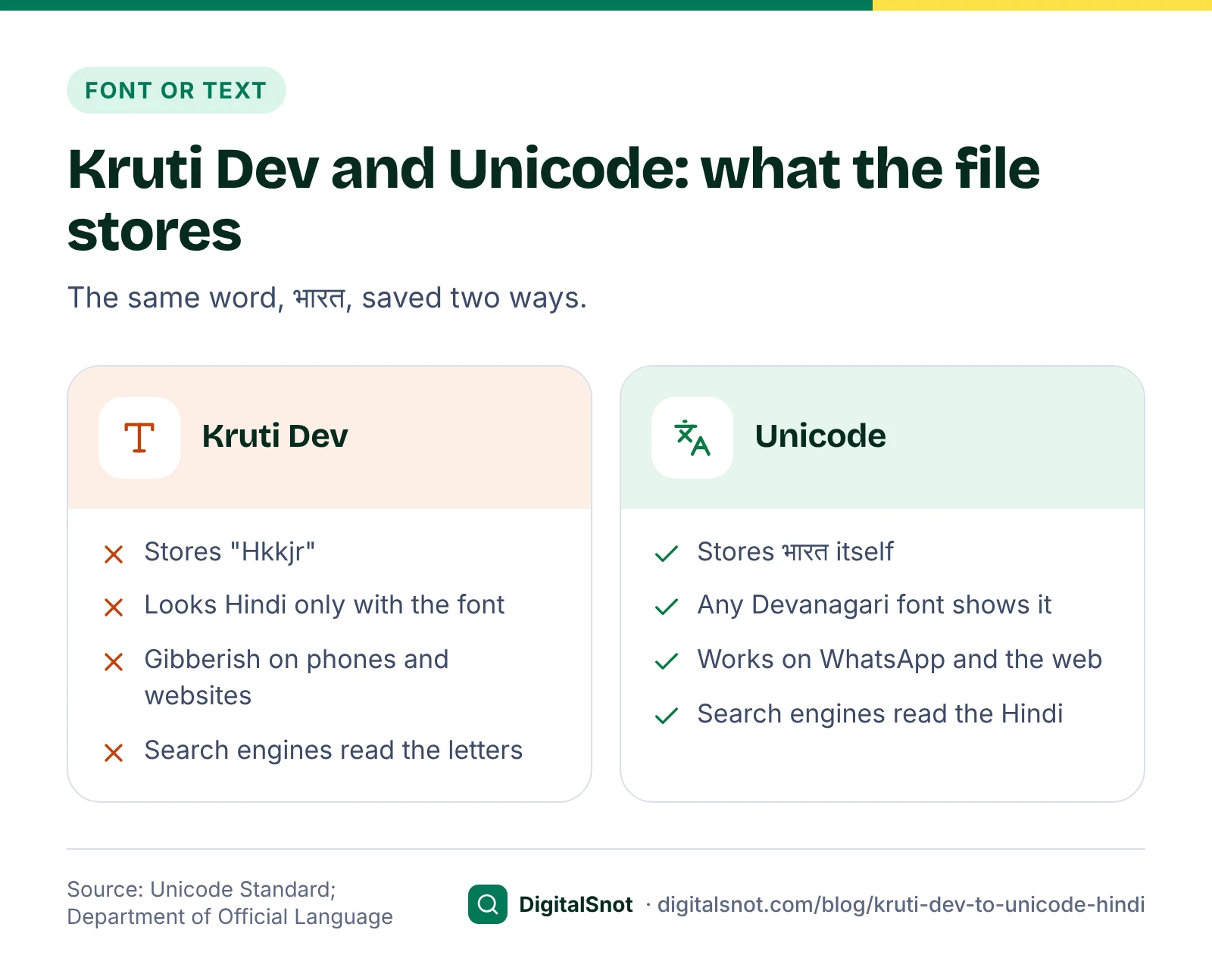
Kruti Dev draws Hindi shapes on the keys of an English keyboard. The file stores English letters and symbols, and the font turns them into Hindi on screen. So भारत is stored as "Hkkjr", and आम का अचार (mango pickle) as "vke dk vpkj". Open that text anywhere the Kruti Dev font is not installed, which means most phones, browsers, email apps and search boxes, and you see the letters, not the Hindi.
Unicode works the other way round. It gives every Devanagari letter and sign its own code (the Devanagari block runs from U+0900 to U+097F), so the file stores the Hindi letters themselves and any font with Devanagari can show them. That is why Unicode Hindi works on WhatsApp, on websites and in Google, and why search engines and screen readers can read it. Kruti Dev text gives them only the English letters.
The government made the same choice for its own offices. The Department of Official Language's introduction to Hindi on computers treats Unicode as the first step and says that using authorised Unicode fonts avoids problems when files are exchanged. Its compilation of orders tells central government offices to use only Unicode-supported fonts and the Inscript keyboard for Hindi work on computers.
Why some letters move when you convert
A converter cannot simply swap one character for another, because Kruti Dev and Unicode keep some letters in a different order. Two matter most:
- The short i matra (ि). It is drawn before its letter, so Kruti Dev typists type it first: किताब is typed "fdrkc". The Unicode Standard stores Devanagari in the order it is spoken, so the matra comes after the letter, and the font draws it on the left.
- The reph (the small र above a letter). In धर्म, it sits over म, and Kruti Dev types it after the letter: "/keZ". Unicode stores it before, as र्.
Half letters joined to a full stroke, joined letters such as क्ष, त्र and ज्ञ, and nukta letters such as ज़ and फ़ need the same care. A good converter handles all of these, but it can only work from the keys in the file, so you still need to check the result.
Convert your old text, step by step
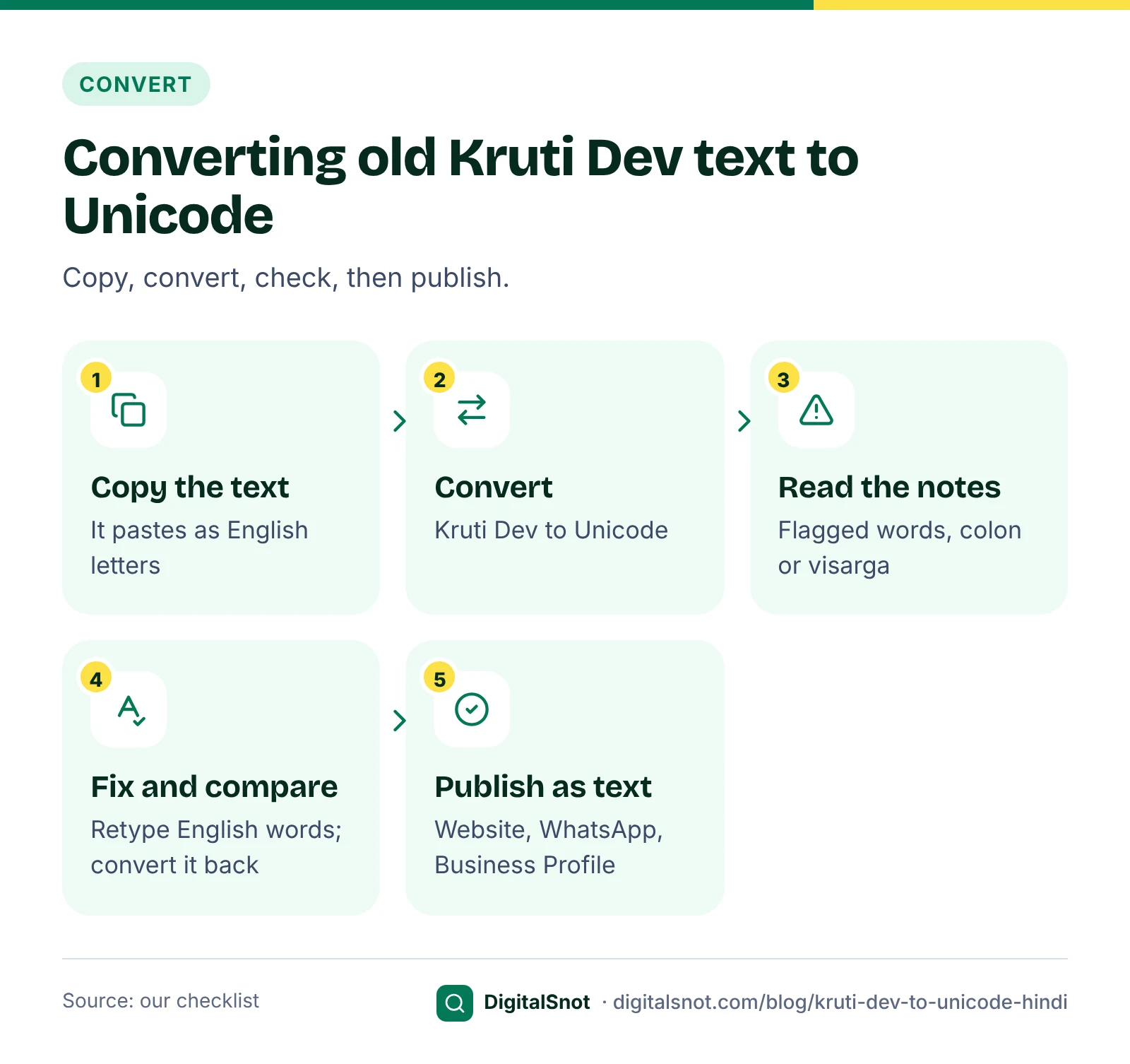
Annapurna Achaar Bhandar is a made-up pickle shop in Aliganj, Lucknow. Its price list, shop notice and festive offers were typed in Kruti Dev years ago, and the owner now wants them on the website and in WhatsApp posts. Here is how to do it with our Kruti Dev to Unicode Converter:
- Copy the text from the old file. It pastes as English letters, which is what the converter expects: "lkseokj ls 'kfuokj] lqcg 10 cts ls".
- Paste it and choose Kruti Dev to Unicode. That line comes out as सोमवार से शनिवार, सुबह 10 बजे से ("Monday to Saturday, from 10 in the morning").
- Read the notes under the result. The tool lists words that look wrong, % signs it turned into a colon or a visarga, and any characters its key table does not know.
- Fix those words by hand, then press Convert it back to compare the Kruti Dev it would make with what you started with.
- Copy the result or download it as a .txt file, and paste it into your website editor, your Google Business Profile or WhatsApp.
The converter runs in your browser with our key table, uses no AI and does not upload your text. It also works the other way, turning Unicode into Kruti Dev keys when an old file or a print shop still needs them.
Check the result before you publish
Conversion gets most of the text right, but a few kinds of mistakes are common enough to look for every time:
- English words typed in an English font inside the Kruti Dev file. They are stored as the same English letters, so they convert into Hindi letters too. "Order djsa" comes out as व्तकमत करें. Retype those words by hand. Web and email addresses are left alone: "www.annapurna.example ij vkWMZj djsa" becomes www.annapurna.example पर ऑर्डर करें.
- The colon and the visarga. Kruti Dev uses one key for both, so the tool decides from the word: दुःख and अतः get a visarga. Check every one it flags.
- Other legacy fonts. The converter reads the Kruti Dev 010 layout. Chanakya, DevLys and other fonts place letters on different keys, so convert one line first and compare it with a printout.
- Typing slips in the original. The tool does not check spelling. Ask someone who reads Hindi well to read the converted text once, slowly.
A quick final test (our suggestion): paste one converted word into a search box or a WhatsApp chat on your phone. If it shows as Hindi there, it is Unicode.
Typing Hindi from now on
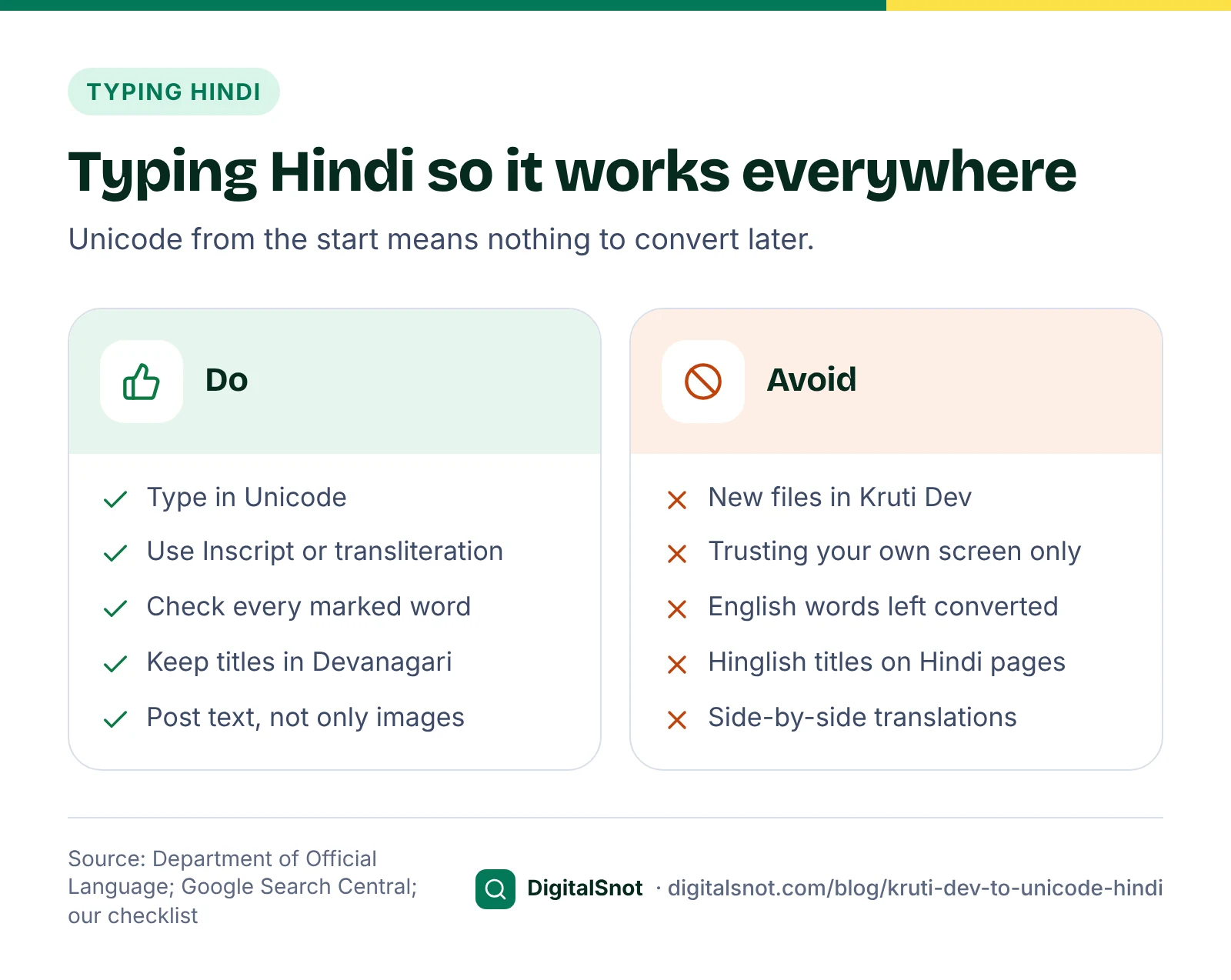
Once your old text is converted, stop the problem coming back by typing new Hindi in Unicode. You have two main ways.
The Inscript keyboard. The Department of Official Language's introduction page describes Inscript as the standard keyboard for Indian languages, already available in the main operating systems, and its orders ask government offices to use it. It takes practice, but every Hindi letter has its own key, so there is nothing to guess.
Transliteration from Hinglish. If you think in Hinglish, type it in English letters and turn it into Devanagari. Our Hindi Transliteration Tool turns "kal milte hain" into कल मिलते हैं and "aam ka achaar" into आम का अचार. It works from word lists and spelling rules, so it marks the words it is not sure of: "stock" comes out as स्तोक with other spellings to pick from, and you type स्टॉक yourself under "Your spellings", which the tool remembers in your browser. It changes the script, not the language: "thank you" becomes थैंक यू, not धन्यवाद. Read every marked word before you copy the result.
Hindi pages and Google
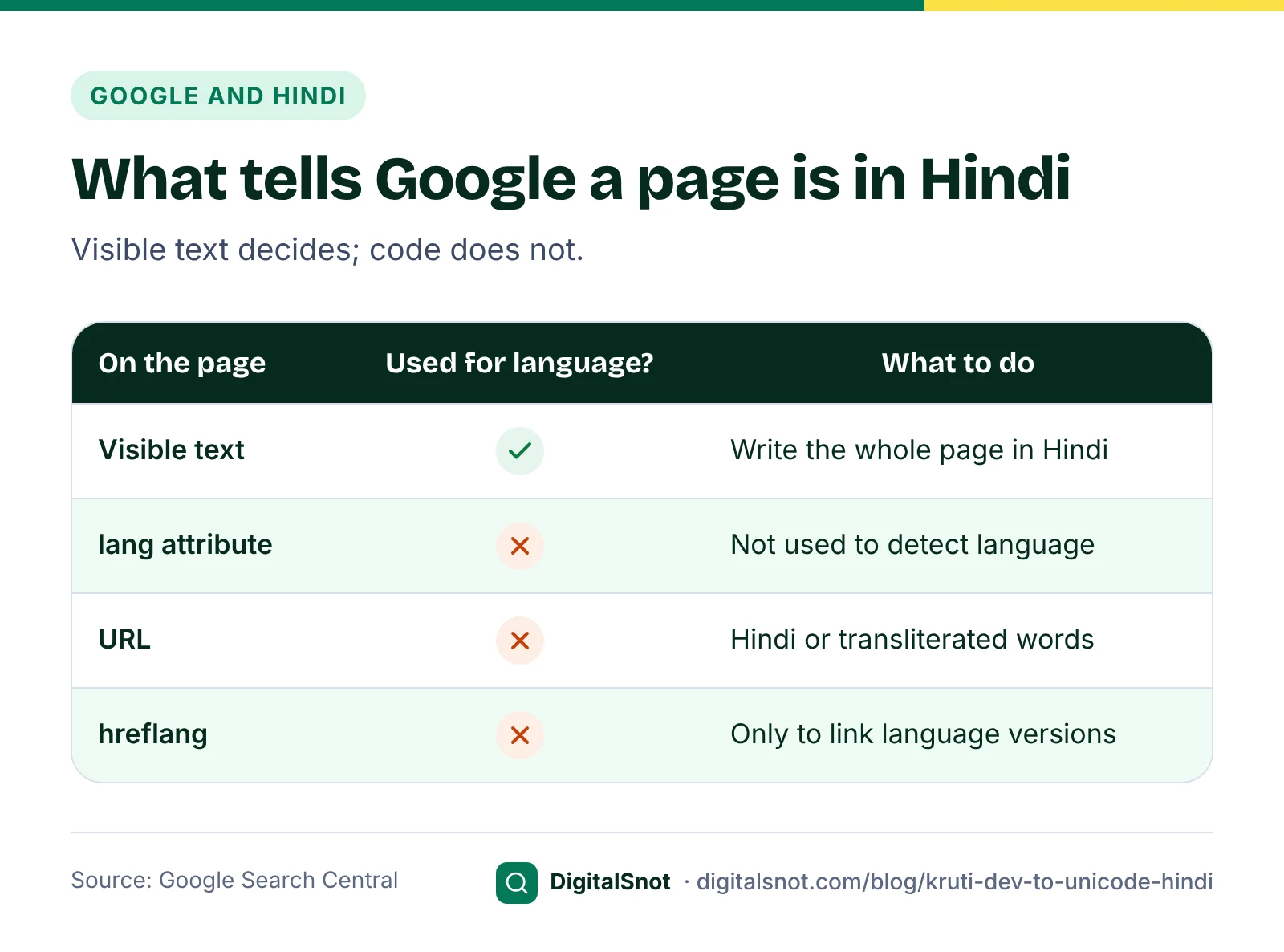
Google's guide to multilingual sites says it works out a page's language from the visible content, not from code such as the lang attribute or from the URL. It asks you to use one language for the content and navigation of each page and to avoid side-by-side translations. So a Hindi page should be in Hindi, written in Unicode, from the menu to the footer.
- Title and headings. Google's title link guidance asks for a title in the same language and writing system as the page, and uses a Hindi page as its example. Write the title of a Hindi page in Devanagari, not in Hinglish. Our Title, Meta Description and URL Slug Writer can write title options in Hindi.
- The URL. Google's URL guidance suggests words in your audience's language, or transliterated words, with hyphens between them. A Devanagari slug such as आम-का-अचार works, but it is sent percent-encoded, so its 10 characters become a 74-character string of %E0 codes when the link is copied as text. A slug in English letters, such as aam-ka-achaar, stays short. The Hindi Transliteration Tool builds both kinds from your text.
- Hreflang, only if you have versions. If the same page exists in English and Hindi, Google's guide to localised versions explains how to link them with hreflang. Each version lists itself and every other version, the versions must point back to each other or the tags may be ignored, and the URLs must be full, including http or https. A site in Hindi only does not need hreflang at all. Our Hreflang Tag Generator writes the tags for each group of pages and checks the codes, such as hi-IN.
Mistakes to avoid
- Pasting Kruti Dev text into a website or WhatsApp and trusting how it looks on your own computer, where the font is installed.
- Posting only a photo or PDF scan of a Hindi notice, with no text version (our suggestion: always add the text).
- Converting with the wrong font layout and publishing without a check.
- Leaving English words from the old file as converted Hindi letters.
- Writing a Hindi page with a Hinglish title, or mixing Hindi and English side by side on every line.
- Adding hreflang to a site that has only one language.
Your next step
Gather your old Kruti Dev files, convert one at a time, and have each one read by someone who reads Hindi well before it goes live. Then set up a Hindi keyboard or keep the Hindi Transliteration Tool open for new posts. More tools for writing and checking content are on our content writing tools page. Once your Hindi pages are live, our post on quick wins in Search Console shows how to see which searches they appear for, and if you would like help with a Hindi or bilingual website, contact us.
Free tools in this article
- Kruti Dev to Unicode Converter Turn Hindi typed in the Kruti Dev font into Unicode that works everywhere, or Unicode into Kruti Dev keys.
- Hindi Transliteration Tool Turn Hinglish into Devanagari or Hindi into English letters, and pick the right spelling for unsure words.
- Title, Meta Description and URL Slug Writer Titles, meta descriptions and URL slugs from your own words, with pixel widths and a Google preview.
- Hreflang Tag Generator Make hreflang tags for each language version of a page, with checks on codes, return links and x-default.
Frequently asked questions
Why does my Hindi text turn into English letters when I copy it?
Because it was typed in Kruti Dev or another legacy font. The file stores English letters and symbols, and only that font draws them as Hindi. Convert the text to Unicode and it shows as Hindi in any font that has Devanagari letters.
What is the difference between Kruti Dev and Unicode?
Kruti Dev is a font that draws Hindi shapes over English keys, so the text is really English letters. Unicode gives every Devanagari letter its own code, so the text is stored as Hindi and works on phones, websites and in search.
Will a converter turn my Kruti Dev text into perfect Unicode?
Mostly, but check it. English words typed inside the old file come out as Hindi letters, the colon and visarga share one key, and other legacy fonts such as Chanakya or DevLys place letters differently. Read flagged words and have someone check the text once.
Which keyboard should I use to type Hindi?
Any keyboard that types Unicode. The Department of Official Language asks government offices to use Unicode fonts and the Inscript keyboard. If you prefer Hinglish, type in English letters and transliterate, then check every word the tool marks.
Does Google read the lang attribute to know my page is in Hindi?
No. Google says it works out a page's language from the visible content, not from code such as the lang attribute or the URL. Write the whole page, including the title and navigation, in Hindi.
Do I need hreflang for a Hindi website?
Only if the same page exists in more than one language, such as English and Hindi versions. Then each version lists itself and the others, and they must point back to each other. A site in one language does not need it.
Sources
Every figure and claim in this article comes from the sources below. We checked each one when writing and link to the original so you can read it yourself. Credit belongs to the authors and publishers listed. How we write and check our articles.
-
1
Introduction (Hindi on computers)
Department of Official Language, Ministry of Home Affairs · Unicode as the first step for Hindi on computers; authorised Unicode fonts avoid problems when files are exchanged; Inscript as the standard keyboard.
-
2
Compilation of orders on the use of Hindi (up to December 2021)
Department of Official Language, Ministry of Home Affairs · Central government offices to use only Unicode-supported fonts and the Inscript keyboard for Hindi work on computers.
-
3
Devanagari (U+0900 to U+097F) names list
Unicode Consortium · The Devanagari block and its characters.
-
4
The Unicode Standard, Chapter 12: South and Central Asia-I
Unicode Consortium · Devanagari is stored in phonetic order; the short i vowel sign is stored after its consonant and drawn to the left.
-
5
Managing multi-regional and multilingual sites
Google Search Central · Google uses the visible content to work out a page's language, not the lang attribute or the URL; one language per page; no side-by-side translations.
-
6
Tell Google about localized versions of your page
Google Search Central · Hreflang: each version lists itself and the others, return links, fully qualified URLs, x-default.
-
7
Influencing title links in Google Search
Google Search Central · Titles in the same language and writing system as the page.
-
8
URL structure best practices for Google Search
Google Search Central · Words in the audience's language or transliterated words, hyphens between words, UTF-8 percent-encoding.