Guide · Technical SEO
Robots.txt for SEO: what to block, what to allow and how to test it
What robots.txt can and cannot do for SEO, the syntax Google follows, what to block and never block, how errors are handled, and ready-to-copy files for a clinic and a shop.

On this page (14 sections)
- 1What robots.txt does, and what it does not do
- 2Where robots.txt must live
- 3Robots.txt syntax, line by line
- 4What to block on a small site
- 5What never to block
- 6Robots.txt, noindex, X-Robots-Tag or a password: which to use
- 7How Google fetches, caches and handles robots.txt errors
- 8Common robots.txt mistakes and how to fix them
- 9WordPress and Shopify: what is different
- 10Ready-to-copy robots.txt examples
- 11How to test robots.txt before and after you publish
- 12AI crawlers and robots.txt
- 13A robots.txt checklist
- 14Sources
Robots.txt for SEO is mostly about restraint. The file tells search engine crawlers which URLs on your site they may fetch, and a good one is short: it keeps crawlers out of admin screens, carts and endless filter pages, and leaves everything else open. A bad one can hide your whole site from Google, or leave pages you wanted gone sitting in results with no description.
This guide is for small-business owners, marketers and developers who look after a site's robots.txt. You will learn what the file can and cannot do, the syntax Google follows, what to block and never block, how Google reacts when the file fails, and how to test a change. Ready-to-copy files for a clinic and a small online shop are near the end. Every rule was checked against Google's documentation and RFC 9309 in October 2026.
What robots.txt does, and what it does not do
Robots.txt is a plain text file at the root of a host that asks crawlers not to fetch certain URLs. It controls crawling, not indexing. Google says the file is used mainly to avoid overloading your site with requests, and that it is not a way to keep a web page out of Google.
Google's introduction to robots.txt is direct about the limits. If a web page is blocked with robots.txt, its URL can still appear in search results, but the result will not have a description. Google can find the URL through links from other pages and index it without ever visiting it. To keep a page out of Google, the same page says to use noindex or to password-protect the page.
Robots.txt is not security either. The standard itself, RFC 9309, says the protocol is not a substitute for proper content security, and that listing paths in robots.txt makes them public and discoverable. Anyone can open yoursite.com/robots.txt. It is also a request, not a lock, and Google's robots.txt specification notes that Google does not apply it to fetches that users control, such as feed subscriptions, or to crawlers used for user safety, such as malware analysis.
What the file can and cannot do
| Job | Can robots.txt do it? | Use instead, or as well |
|---|---|---|
| Stop Googlebot fetching admin, cart, search or filter URLs | Yes | Nothing else needed |
| Keep images, video or audio files out of Google's results | Yes, Google documents this for media files | Nothing else needed |
| Keep a web page out of Google's results | No: the URL can still be indexed from links | noindex, or a password |
| Remove a page that is already in results | No: Google can no longer see the page to drop it | noindex, or a 404 or 410 status |
| Protect private files | No: the file is public and only a request | A login or server access rules |
| Slow Googlebot down | No: Google ignores Crawl-delay | Short-term 500, 503 or 429 responses |
Keep that table in mind for the rest of this guide. Many robots.txt problems start with asking the file to do a job from one of the "No" rows.
Where robots.txt must live
Put one file named robots.txt, in lower case, at the top level of each host you want to control. Its rules apply only to the protocol, host and port the file is served from, so every subdomain, and every protocol or port that serves content, is treated separately.
Google's guide to writing and submitting a robots.txt file says a site can have only one robots.txt file, that it must sit at the root of the site host it applies to, and that crawlers do not look for it in subdirectories. The file must be UTF-8 encoded plain text; Google may ignore characters outside the UTF-8 range, which can make rules invalid.
| Robots.txt address | Covers | Does not cover |
|---|---|---|
| https://www.smilestudio.example/robots.txt | Every URL on https://www.smilestudio.example/ | https://smilestudio.example/, http://www.smilestudio.example/ and https://blog.smilestudio.example/ |
| https://shop.kesarcrafts.example/robots.txt | Only the shop subdomain | https://www.kesarcrafts.example/ |
| https://www.smilestudio.example:8181/robots.txt | Only URLs served on port 8181 | The same host on the normal port |
| https://www.smilestudio.example/pages/robots.txt | Nothing: crawlers do not read files in folders | Everything |
Size has a hard edge: Google reads only the first 500 KiB of the file and ignores anything after that. A small site needs a tiny fraction of it; a file near the limit usually lists single URLs that should be one pattern.
On a hosted platform you may not be able to edit the file at all; Google's introduction notes that platforms such as Wix or Blogger may offer a search settings page instead.
Robots.txt syntax, line by line
A robots.txt file is a list of groups. Each group starts with one or more User-agent lines naming crawlers, followed by Disallow and Allow rules for those crawlers. Google supports four fields, user-agent, allow, disallow and sitemap, and ignores the rest.
# Sample file for a made-up clinic site
User-agent: Googlebot
Disallow: /drafts/

User-agent: *
Disallow: /admin/
Allow: /admin/help/

Sitemap: https://www.smilestudio.example/sitemap.xml
User-agent: which crawler a group is for
The user-agent value is a crawler's token, such as Googlebot or Bingbot. RFC 9309 says crawlers match it without regard to case, so googlebot and Googlebot are the same. A crawler follows only the group that matches it, ignoring every other group, and falls back to the User-agent: * group only when no group names it. If several groups name the same crawler, RFC 9309 says their rules are combined into one.
This catches people out. In the sample above, Googlebot has its own group, so it ignores the * group and may crawl /admin/. Repeat any rule you want a named crawler to follow inside its own group.
One Google crawler works the other way round. Google's list of special-case crawlers says AdsBot, which checks pages used in Google Ads, ignores the global * group. Only a group that names AdsBot-Google restricts it, and advertisers will usually want to leave it alone.
Disallow and Allow
Disallow names a path crawlers should not fetch; Allow names a path they may fetch, usually inside a disallowed folder. Each path starts with a slash and matches from the start of the URL's path, so a rule is a prefix. Paths are case-sensitive, so Disallow: /Admin/ does not block /admin/. A Disallow line with no path blocks nothing.
| Rule | Blocks | Does not block |
|---|---|---|
Disallow: /blog | /blog, /blog/braces-cost, /blogging-tips, /blog-archive.html | /Blog/, /news/blog |
Disallow: /blog/ | /blog/ and every URL inside it | /blog, /blogging-tips |
Disallow: / | Every URL on the host | Nothing |
Disallow: | Nothing | Everything |
The first row is the trap. A prefix rule meant for one folder also blocks every URL that starts with the same letters, so add the trailing slash when you mean a folder.
Wildcards: * and $
Google supports two special characters in paths, as RFC 9309 does. An asterisk (*) matches any run of characters, including none, and a dollar sign ($) marks the end of the URL. Rules already match as prefixes, so a * at the end of a path adds nothing: Google treats /blog* the same as /blog.
| Rule | Matches | Does not match |
|---|---|---|
Disallow: /*?sort= | /mugs?sort=price, /textiles/quilts?sort=new | /mugs, /mugs?colour=blue&sort=price |
Disallow: /*&sort= | /mugs?colour=blue&sort=price | /mugs?sort=price |
Disallow: /*.pdf$ | /price-list.pdf, /forms/consent.pdf | /price-list.pdf?v=2, /pdf-guide/ |
Allow: /$ | Only the home page, / | /about, /?ref=ad |
A parameter can come first (after ?) or later (after &), so blocking it everywhere needs both forms, as the shop example later shows.
Which rule wins when rules conflict
Google picks a rule by length, not by its place in the file. Within a group, it uses the most specific rule, meaning the one with the longest matching path. When an Allow and a Disallow match equally, Google uses the least restrictive rule, which is the Allow. RFC 9309 says the same: the match with the most characters wins, and an Allow beats an equivalent Disallow.
| Rules in the group | URL | Result | Why |
|---|---|---|---|
Allow: /p and Disallow: / | /page | Allowed | /p is longer than / |
Allow: /folder and Disallow: /folder | /folder/page | Allowed | Equal length, so the least restrictive rule wins |
Allow: /page and Disallow: /*.htm | /page.htm | Blocked | /*.htm matches more characters of the URL |
Allow: /$ and Disallow: / | / | Allowed | /$ matches the home page exactly |
Allow: /$ and Disallow: / | /page.htm | Blocked | /$ does not match it, so only Disallow: / applies |
Comments, and lines Google ignores
Anything after a # is a comment and is ignored, so use comments to record who changed the file, when and why. Google also skips lines it cannot parse and uses the rest; Search Console's robots.txt report lists the skipped lines.
Several rules you will find in old files do nothing for Google. In July 2019 Google announced it would retire all code that handles unsupported and unpublished rules, such as noindex, nofollow and crawl-delay, on 1 September 2019. It said those rules had never been documented by Google, and that their use was contradicted by other rules in all but 0.001% of robots.txt files on the internet.
Crawl-delay is not part of RFC 9309, and Google ignores it. Bing said in 2012 that Bingbot honours Crawl-delay, so the line is not wasted in a Bingbot group, but it will never slow Googlebot. To slow Googlebot in an emergency, Google's guide to reducing the crawl rate suggests returning 500, 503 or 429 status codes to crawl requests for a short time, and warns against keeping that up for long.
The Sitemap line
A Sitemap line tells crawlers where your XML sitemap or sitemap index lives. Use the full URL, including https://. Google's guide to building and submitting a sitemap says the line can go anywhere in robots.txt. Submitting the sitemap in Search Console's Sitemaps report as well shows you when Google read it and any errors it found.
The free XML Sitemap Generator turns a list of URLs or a crawl export into a valid sitemap and gives you the Sitemap line to paste. To check an existing one, the Sitemap Validator finds your sitemap from robots.txt or the usual places and flags listed pages that redirect, fail, carry noindex or point their canonical elsewhere.
What to block on a small site
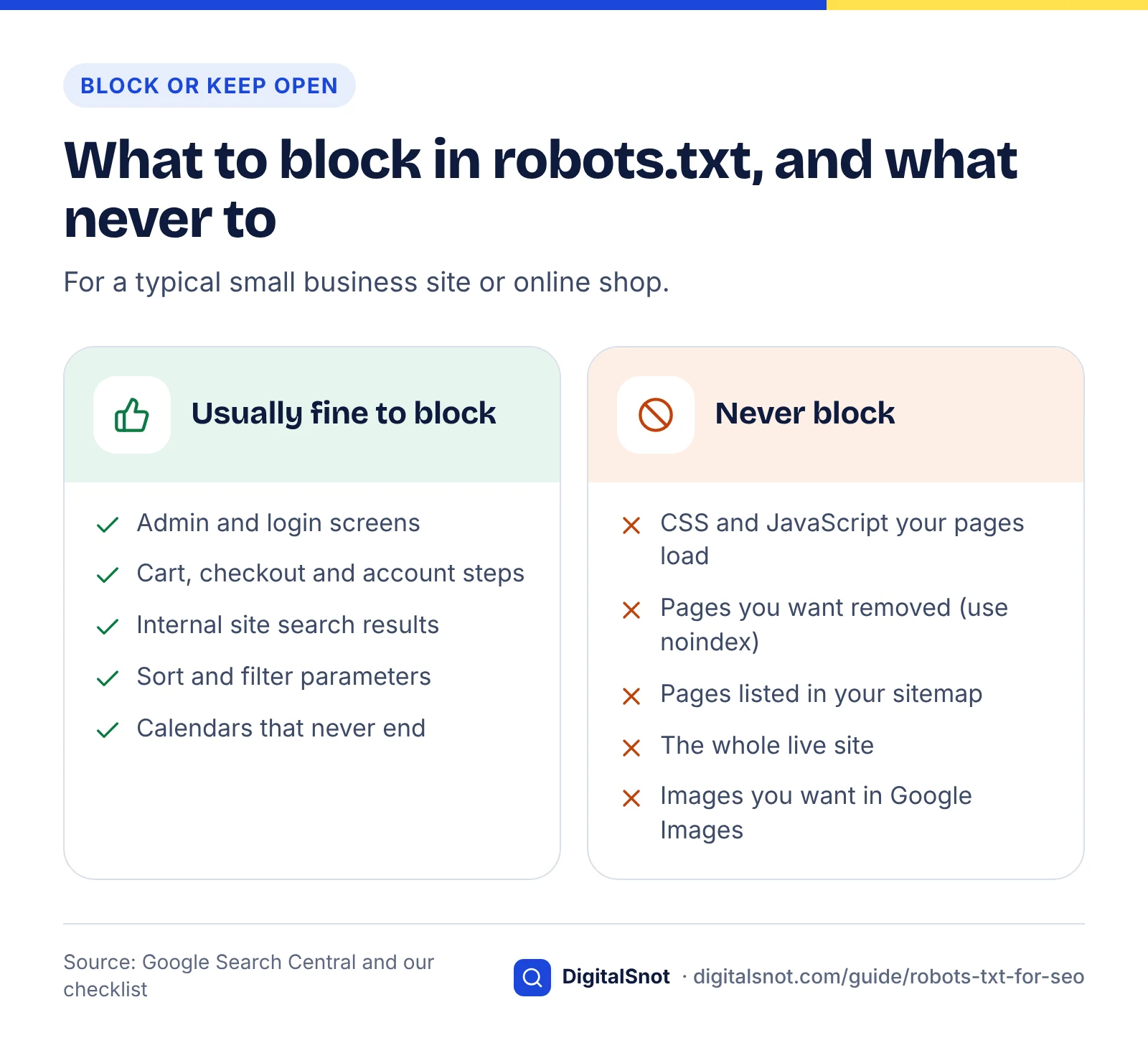
Block URLs that waste crawling and that nobody should land on from a search: admin and login screens, cart and checkout steps, internal search results, and sort or filter parameters. On a small site, that is usually all you need.
Google's guide to optimising your crawl budget is written for large sites, but its advice works in miniature: consolidate duplicate content first, and block unimportant pages that cannot be consolidated, such as differently sorted versions of the same page, with robots.txt. Google says this significantly decreases the chance that those URLs are processed by other Google systems.
Filters are the classic case for online shops. Google's guide to managing faceted navigation says filter URLs, often built with parameters, can lead to overcrawling and slower discovery of new content, and recommends robots.txt rules that disallow them when you do not need them in search. It also notes that filters held in # fragments have no effect on crawling at all.
| Area | Example paths | Why block it | Check first |
|---|---|---|---|
| Admin and login | /admin/, /login, /wp-admin/ | No value in search | Files your public pages load from there stay open, such as WordPress's admin-ajax.php |
| Cart, checkout and account | /cart, /checkout, /account/ | Personal steps, not landing pages | No product URL starts with the same letters |
| Internal search results | /search, /?s= | Endless thin variations | Your real category pages do not live under /search |
| Sort and filter parameters | /*?sort=, /*?colour= | Endless copies of category pages | Filters that people search for have their own category page |
| Calendars and archives that never end | /events/calendar/ | An infinite URL space | Real event pages sit outside that path |
Thank-you pages, thin tag pages and old offers are missing on purpose: you want them out of results, not out of crawling, so they need noindex.
What never to block
Never block the files Google needs to render your pages, pages you want removed from results, pages listed in your sitemap, or the whole live site.
CSS, JavaScript and image files your pages need
Google needs your CSS and JavaScript to see what visitors see. Google's JavaScript SEO basics say Google Search will not render JavaScript from blocked files or on blocked pages, and its robots.txt introduction says to block resource files only when pages load without them and are not significantly affected. If a blocked script builds your menu, prices or reviews, Google may never see them. On WordPress this usually means leaving /wp-content/ and /wp-includes/ alone, because they hold theme files, scripts and uploaded images.
Pages you want removed from Google
This mistake is easy to make and slow to undo. If you block a page that is already indexed, Google can no longer crawl it, so it never sees the noindex tag you added, and the URL can stay in results as "Indexed, though blocked by robots.txt". Google's noindex documentation says that for noindex to work, the page must not be blocked by robots.txt. Its robots meta tag and X-Robots-Tag specification says the same of both: the rules can only be read and followed if crawlers are allowed to access the page.
The fix is the order of steps. Remove the Disallow rule, add noindex, and leave the page crawlable. Blocking it again later can let the bare URL come back if other sites link to it.
Pages in your sitemap, and the whole live site
A sitemap lists pages you want crawled and indexed, so blocking them sends Google opposite signals. A lone Disallow: / under User-agent: * blocks every compliant crawler from the whole host; it belongs only on a staging copy, and even there a password is the better lock.
Images and videos you want found
Google's introduction says robots.txt can keep image, video and audio files out of Google's search results. That is useful when you mean it, and harmful when you do not: a broad rule such as Disallow: /uploads/ or Disallow: /*.jpg$ can quietly remove your product photos from Google Images.
Robots.txt, noindex, X-Robots-Tag or a password: which to use
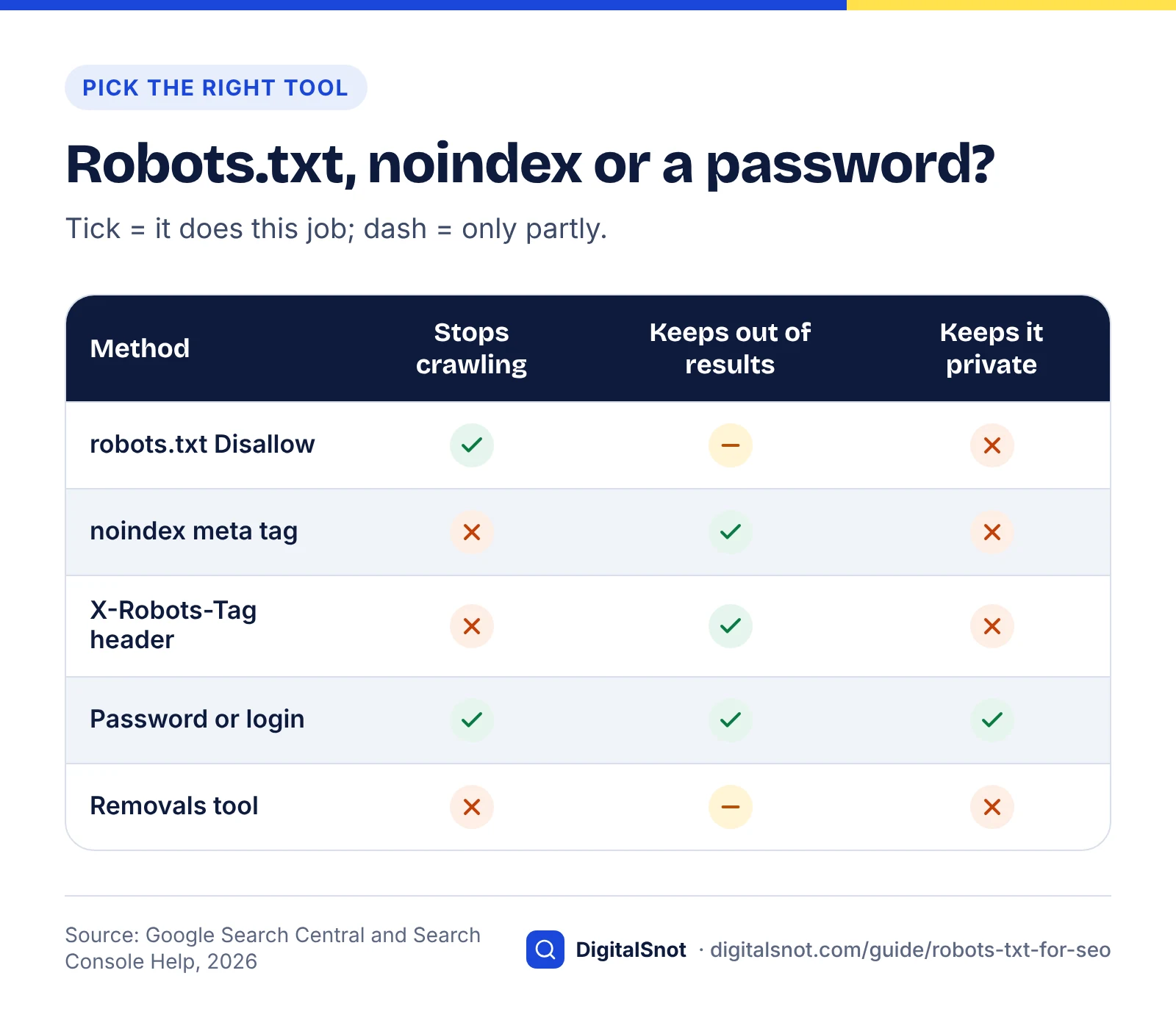
Use robots.txt to control crawling, noindex to control indexing, the X-Robots-Tag header for noindex on files that are not HTML, and a password for anything private. Google's page on how to control what you share with Google draws the same lines.
| Method | Where it goes | What Google does | Best for |
|---|---|---|---|
| robots.txt Disallow | /robots.txt at the root of the host | Does not fetch the URL, but may index the bare URL from links | Admin, cart, search and filter URLs; media you want out of image and video results |
| noindex robots meta tag | <meta name="robots" content="noindex"> in the page's head | Crawls the page, then leaves it out of results | Thank-you pages, thin tag pages, expired offers |
| X-Robots-Tag: noindex | The HTTP response header, set on the server | Same as the meta tag, for any file type | PDFs, images and other files that are not HTML |
| Password or login | Your server or CMS | Cannot reach the content, so cannot index it | Staging sites, client portals, private documents |
| 404 or 410 status | The server response | Drops the URL once it is crawled and processed | Pages you have deleted for good |
| Removals tool | Search Console | Hides the URL from results for about six months; does not stop crawling | Urgent cases, while a permanent fix takes effect |
Google's noindex documentation says the meta tag and the response header have the same effect. The 404 and 410 row comes from Google's 2019 note on unsupported rules, and the Removals tool help says a removal lasts about six months and does not stop crawling.
If you use robots.txt and noindex on the same URL, robots.txt wins in the worst way. Google never fetches the page, so it never reads the noindex.
Robots.txt is not noindex
Worked example: a thank-you page in the results
Example: Smile Studio Dental, a made-up clinic in Kothrud, Pune, finds its /thank-you/ page showing in Google. The developer adds Disallow: /thank-you/ to robots.txt, and weeks later the page is still listed, now with no description. That is Google's normal handling of a blocked URL: its help page on missing page information in search results says this happens when a rule, such as one in robots.txt, stops Googlebot reading the page.
The fix takes three steps. Remove the Disallow line, add a noindex robots meta tag to the thank-you page, then run a live test in URL Inspection and confirm that it reports indexing as not allowed because of the noindex. Google's noindex documentation says the page is dropped from results when Googlebot next crawls it and sees the tag.
How Google fetches, caches and handles robots.txt errors
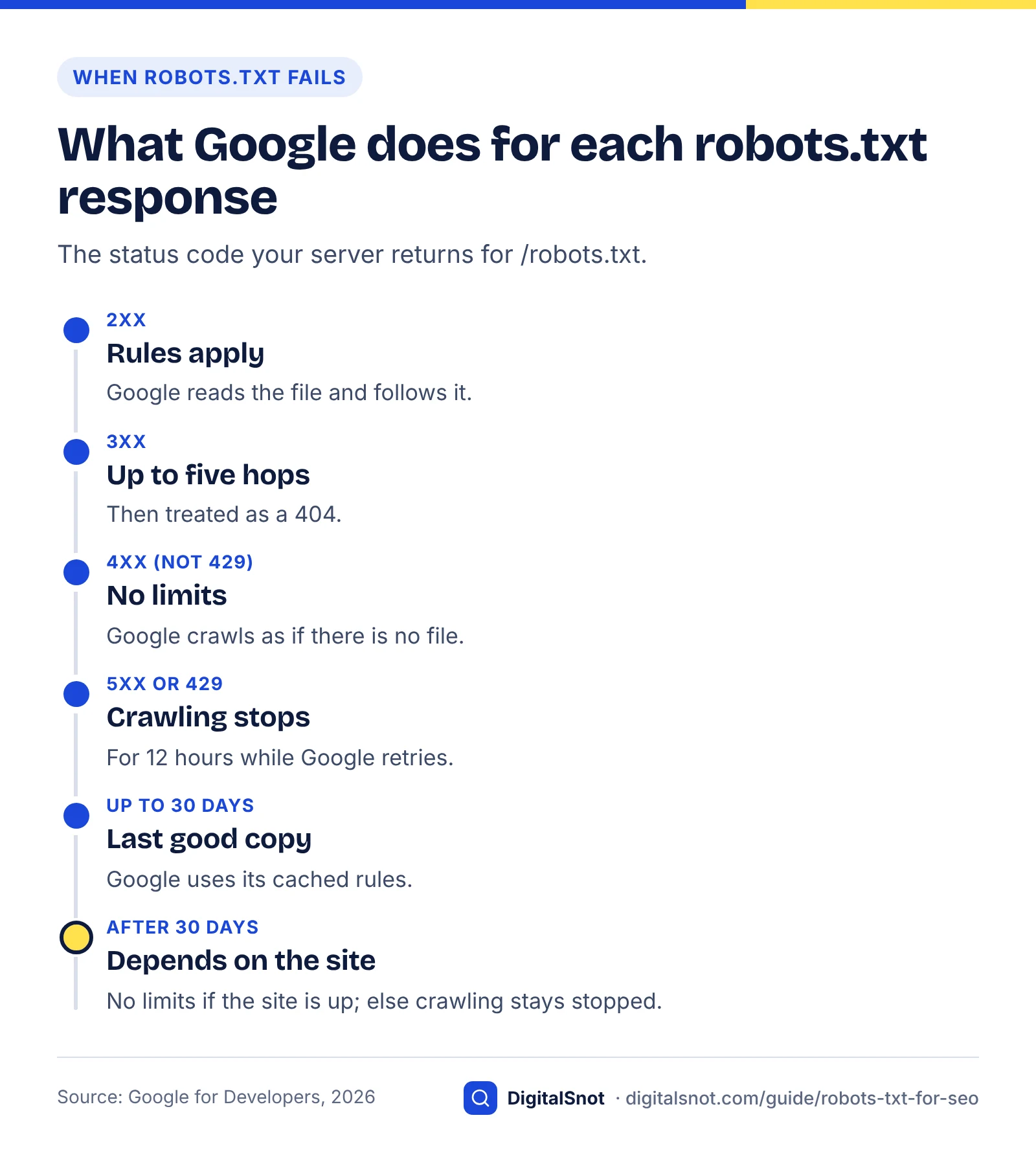
Google generally caches your robots.txt for up to 24 hours, so a change can take a day to apply. The status code your server returns for /robots.txt matters as much as the rules: a 404 means Google may crawl everything, while a server error can stop it crawling the whole site.
Caching
Google's specification says it generally caches robots.txt for up to 24 hours, and may keep a copy longer when it cannot refresh it, for example because of timeouts or 5xx errors. Google's page on updating your robots.txt file says its crawlers pick up changes when they refresh the cached copy, and that you can ask for a faster refresh with the recrawl option in Search Console's robots.txt report. RFC 9309 asks all crawlers not to use a cached copy for more than 24 hours unless the file is unreachable.
What each status code does
| Your /robots.txt returns | What Google does |
|---|---|
| 2xx (success) | Reads the file and follows its rules |
| 3xx (redirect) | Follows at least five redirect hops, then treats the file as a 404. It ignores redirects made with JavaScript, frames or meta refresh |
| 4xx, except 429 | Acts as if there is no robots.txt: no crawl restrictions |
| 5xx or 429 | Stops crawling the site for the first 12 hours while it retries the file, then uses the last good copy for up to 30 days; with no cached copy, it assumes no restrictions |
| Still failing after 30 days | No restrictions if the rest of the site is available; if the site has wider availability problems, crawling stays stopped while Google keeps checking robots.txt |
| Timeouts, DNS or network errors | Handled like a server error |
So a missing robots.txt is harmless and a broken one is not. Search Console's robots.txt report says having no robots.txt file is fine and means Google can crawl all your URLs. A file that times out or returns 503 can pause crawling across the whole site.
Treat robots.txt like code: change it on purpose and test it before upload. Your server logs show when Googlebot fetched the file and what it crawled afterwards; our server log analysis guide explains how to read them.
Common robots.txt mistakes and how to fix them
Most robots.txt damage comes from a short list of repeated mistakes. Check your file against each one.
- The staging file goes live. A test site carries Disallow: / to keep crawlers out, the file is copied with the code at launch, and the new site cannot be crawled. Protect staging with a password instead, and open /robots.txt on the live site after every release.
- Blocking pages you want removed, or the files pages need. Google cannot see a noindex on a page it may not crawl, or render a page whose scripts are blocked.
- A named group that drops your * rules. A Googlebot or Bingbot group means that crawler stops reading the * group, so repeat the shared rules.
- Case and prefix surprises. Disallow: /Search does not block /search, and Disallow: /cart also blocks /cartoon-mugs.
- Rules Google ignores. noindex, nofollow, crawl-delay and host lines do nothing for Google.
- The wrong place or host. A file in a folder is never read, and a file on www does not cover the bare domain, a subdomain or http.
- A robots.txt that errors. Make sure the file loads quickly with a 200 status, and that firewalls and CDN rules let crawlers fetch it.
- Listing private paths. Disallow: /client-reports/ tells everyone where your client reports live. Put private areas behind a login instead.
If you are moving or relaunching a site, our website migration checklist covers the staging-to-live step, where a leftover Disallow: / can slip through with everything else.
WordPress and Shopify: what is different
WordPress
When there is no robots.txt file in the site's root folder, WordPress generates one. Its do_robots function outputs a User-agent: * group with Disallow: /wp-admin/ and Allow: /wp-admin/admin-ajax.php. Since WordPress 5.5 the generated file also points to the built-in sitemap index at /wp-sitemap.xml, as the WordPress 5.5 sitemaps announcement explains.
The "Discourage search engines from indexing this site" box under Settings, Reading no longer writes Disallow: / into robots.txt. The do_robots changelog says that since WordPress 5.3 it uses a robots meta tag instead. Either way, untick it at launch and check the live page source for a noindex tag.
Shopify
Shopify generates a default robots.txt that, in its own words, works for most stores. Rather than uploading a file, you change it by adding a robots.txt.liquid template to your theme. Shopify's robots.txt documentation strongly recommends using its Liquid objects to add or remove rules rather than replacing the file with plain text, because Shopify updates the default rules regularly. Save a copy of your live /robots.txt before you start, and test the result like any other change.
Ready-to-copy robots.txt examples
Each example is a complete starting file for a made-up business. Replace the paths and sitemap address with your own, delete any line you do not need, and test before you upload. Remember that each one covers only the host it is uploaded to.
A small business site: Smile Studio Dental, Kothrud, Pune
A clinic site with service pages, a blog, a booking form and an admin area. It needs very little.
# robots.txt for www.smilestudio.example (sample file)
# Changed 23 Oct 2026 by the web team: added /search

User-agent: *
# Admin and login screens
Disallow: /admin/
Disallow: /login
# Internal site search results
Disallow: /search

Sitemap: https://www.smilestudio.example/sitemap.xml
Notice what is not there. No rules for CSS, JavaScript or images, because Google needs them. No /thank-you/ line, because that page gets noindex instead. No Crawl-delay or noindex lines, because Google ignores them. If the same clinic ran WordPress, the file would look like this:
# robots.txt for the WordPress version of the same site (sample file)
User-agent: *
Disallow: /wp-admin/
Allow: /wp-admin/admin-ajax.php
# WordPress search results
Disallow: /?s=
Disallow: /search/

Sitemap: https://www.smilestudio.example/wp-sitemap.xml
A small online shop: Kesar Crafts, Jaipur
A made-up shop selling blue pottery and block-printed textiles, with category pages that can be sorted and filtered by colour and price.
# robots.txt for www.kesarcrafts.example (sample file)

User-agent: *
# Cart, checkout and customer accounts
Disallow: /cart
Disallow: /checkout
Disallow: /account/
# Site search results
Disallow: /search
# Sort and filter versions of category pages
Disallow: /*?sort=
Disallow: /*&sort=
Disallow: /*?colour=
Disallow: /*&colour=
Disallow: /*?price=
Disallow: /*&price=

Sitemap: https://www.kesarcrafts.example/sitemap.xml
Check three things before you copy it. First, prefixes: Disallow: /cart also blocks a product at /cartoon-mugs, so if a URL starts with one of these words, use Disallow: /cart$ for the exact page. Second, filters people search for: if customers type "blue pottery mugs" into Google, give that filter a proper category page with a clean URL. Third, your platform: Shopify and WooCommerce use their own paths, so start from what yours already serves.
A staging or test site
# STAGING ONLY. Never copy this file to the live site.
User-agent: *
Disallow: /
Pair it with a password. Robots.txt only asks, and Google lists password protection as the way to keep private content out of Search.
To build a file like these from tick boxes, the free Robots.txt Generator starts from your site type (a small business site, WordPress, Shopify, an online shop or a blog), lets you choose what to keep crawlers out of, and explains every line it writes. It runs in your browser, and nothing you type is uploaded.
How to test robots.txt before and after you publish
Test the draft before you upload it, then check what Google fetched and inspect a few key URLs. In Search Console, the robots.txt report and URL Inspection cover Google's side.
Before you upload: test the draft
- Paste the draft into the free Robots.txt Tester, choose a crawler such as Googlebot or Bingbot, and test real paths: your home page, a service or product page, a CSS file and a filtered URL. It shows whether each path is allowed and which line decides, and warns if the whole site, CSS or JavaScript is blocked.
- If you built the file in the Robots.txt Generator, read its checks, which flag lines Google ignores and capital letters in paths.
- Save a dated copy of the current live file, so you can roll back in minutes.
After you upload: check what Google sees
- Open https://yoursite/robots.txt in a browser. It should load as plain text, not a login page, an error page or a challenge screen.
- Open Search Console's robots.txt report under Settings. It shows the robots.txt files Google found for the top 20 hosts on your site, when each was last crawled, and any warnings or errors. For an urgent fix, such as removing an accidental Disallow: /, request a recrawl there. The report is available only for domain-level properties.
- Inspect two or three key URLs with the URL Inspection tool and run a live test. Crawl allowed should say Yes; if it says No, a robots.txt rule is blocking Google.
- For a quick view of one page, the free Indexability Checker checks the status code, redirects, robots.txt for Googlebot, noindex in the robots meta tag and X-Robots-Tag header, and the canonical. It cannot see Google's index; only URL Inspection shows that.
- Watch the Page indexing report over the next few weeks for a rise in pages reported as blocked by robots.txt, or as "Indexed, though blocked by robots.txt". Our guide to page indexing issues explains both.
Test robots.txt before and after you publish
Other search engines and site-wide checks
Bing Webmaster Tools has its own robots.txt tester. Bing's announcement of the tool says it shows which statement blocks a URL and for which user agent, and lets you tell Bing the file has changed. For a site-wide view, the free Website SEO Audit crawls up to 50 pages the way a search engine does, reading your sitemap and robots.txt, and lists issues with the pages they affect. A section missing from the crawl is worth checking against your rules.
AI crawlers and robots.txt
AI crawlers read the same file, and the real decision is which kind of AI bot to block. OpenAI, for example, documents GPTBot and OAI-SearchBot as separate crawlers, one for training and one for ChatGPT search, with independent robots.txt settings, and says changes take about 24 hours to register. Google's common crawlers page describes Google-Extended as a robots.txt token for Gemini training and grounding, and says it does not affect inclusion in Google Search and is not a ranking signal.
Our guide on how to block AI crawlers without disappearing from AI search covers every major bot, three ready-made policies and the CDN settings that can block Googlebot by accident. To see what your current file allows, the free AI Crawler Checker reads your live robots.txt and shows, crawler by crawler, whether ChatGPT search, Perplexity, Claude, Google, Bing and training crawlers may fetch a page and which rule decides.
The group rules apply here too: a group that names an AI bot does not inherit your * rules, and does not change what Googlebot may crawl.
A robots.txt checklist
- One file per host, at /robots.txt, in UTF-8 plain text, loading with a 200 status.
- Only user-agent, allow, disallow and sitemap lines, plus dated comments.
- No Disallow: / under User-agent: * on the live site.
- CSS, JavaScript and images that pages load are left open.
- No page you want removed is blocked; it carries noindex instead.
- Named groups repeat any * rules they need.
- Paths checked for case and prefix surprises against real URLs.
- The full sitemap URL is listed.
- Tested in a tester, then in the robots.txt report and URL Inspection.
Robots.txt sits at the start of every crawl, so it belongs in any technical SEO audit. If you would like someone to review your robots.txt alongside crawling, indexing and site structure, that is part of our technical SEO service, and you can get in touch when you are ready.
Free tools in this guide
- XML Sitemap Generator Turn a list of URLs or a crawl export into a valid XML sitemap, split with an index when it is large.
- Sitemap Validator Check your XML sitemap: limits, URLs, lastmod dates, and listed pages that redirect, fail or are noindex.
- Robots.txt Generator Build a robots.txt for your site type, with AI crawler choices and a line-by-line explanation.
- Robots.txt Tester Test a URL against robots.txt and see which rule blocks or allows it.
- Indexability Checker See what stops Google indexing a page: status, redirects, robots.txt, noindex, canonical and HTML size.
- Website SEO Audit Crawl up to 50 pages and get a health score, every issue and a 30-day plan.
By the numbers
- the most of a robots.txt file Google reads; anything after that limit is ignored
- 500 KiB
- Source: Google for Developers
- how long Google generally caches a robots.txt file before fetching it again
- 24 hours
- Source: Google for Developers
- the date Google retired its code for unsupported robots.txt rules such as noindex
- 1 Sep 2019
- Source: Google Search Central Blog
- how long Google keeps using its last good copy when robots.txt returns server errors
- 30 days
- Source: Google for Developers
Frequently asked questions
Does robots.txt stop a page appearing in Google?
No. Robots.txt stops crawling, not indexing. Google says a blocked URL can still appear in search results, without a description, if other pages link to it. To keep a page out of results, let Google crawl it and add a noindex robots meta tag or X-Robots-Tag header, or put the page behind a password.
Should I use robots.txt or noindex?
Use robots.txt for URLs you never want crawled, such as admin screens, carts, internal search and filter parameters. Use noindex for pages people can visit but you do not want in results, such as thank-you pages. Never use both on one URL: Google cannot read the noindex on a page robots.txt blocks.
Where should the robots.txt file go?
At the root of each host, so it opens at https://www.yoursite.com/robots.txt. Google says its rules apply only to the protocol, host and port it is served from, so a subdomain or an http version needs its own file. A robots.txt file inside a folder is never read.
Does Google support Crawl-delay or noindex in robots.txt?
No. Google supports only user-agent, allow, disallow and sitemap, and retired its code for unsupported rules such as noindex, nofollow and crawl-delay on 1 September 2019. Bing said in 2012 that Bingbot honours Crawl-delay. To keep pages out of Google, use a noindex meta tag or X-Robots-Tag header instead.
What happens if my robots.txt returns an error?
A 404 or other 4xx error, except 429, means Google crawls as if there were no restrictions. A 5xx or 429 error makes Google stop crawling the site for the first 12 hours while it retries, then use the last good copy for up to 30 days. Timeouts and DNS errors are treated like server errors.
How long does Google take to notice a robots.txt change?
Google generally caches robots.txt for up to 24 hours, so most changes apply within a day. For an urgent fix, such as removing an accidental Disallow: /, use the recrawl option in Search Console's robots.txt report. Other crawlers set their own timing; OpenAI, for example, says its systems take about 24 hours to adjust.
Should I block CSS and JavaScript files in robots.txt?
No. Google renders pages to see what visitors see, and it says Google Search will not render JavaScript from blocked files. Block resource files only if your pages work properly without them. On WordPress, leave /wp-content/ and /wp-includes/ open, because they hold theme files, scripts and images.
Do I need a robots.txt file at all?
Not necessarily. Search Console Help says that not having a robots.txt file is fine and means Google can crawl all URLs on your site. Most sites still benefit from a short file that keeps crawlers out of admin, cart, search and filter URLs and lists the sitemap.
How do I test robots.txt, before and after it goes live?
Test a draft in a robots.txt tester that shows which line allows or blocks each URL. After you upload, check Search Console's robots.txt report for fetch errors and skipped lines, and run a live test in URL Inspection on key pages: Crawl allowed should say Yes. Bing Webmaster Tools has its own tester for Bingbot.
Are robots.txt rules case-sensitive?
The paths are. Disallow: /Admin/ does not block /admin/, so match the exact case of your URLs. Crawler names in User-agent lines are matched without regard to case, so Googlebot and googlebot are the same. Rules also match as prefixes, so Disallow: /cart blocks /cartoon-mugs too.
Sources
Every figure and claim in this guide comes from the sources below. We checked each one when writing and link to the original so you can read it yourself. Credit belongs to the authors and publishers listed. How we write and check our articles.
-
1
Robots.txt introduction and guide
Google Search Central · Robots.txt manages crawling, not indexing; blocked URLs can appear without a description; media and resource files; hosted platforms.
-
2
How to write and submit a robots.txt file
Google for Developers · One file per site, at the root of the host, not in subdirectories; UTF-8 encoding.
-
3
How Google interprets the robots.txt specification
Google for Developers · Protocol, host and port scope; 500 KiB limit; 24-hour cache; status code handling; supported fields; wildcards; precedence.
-
4
Update your robots.txt file
Google for Developers · Crawlers pick up changes when the cache refreshes; request a recrawl in the robots.txt report.
-
5
RFC 9309: Robots Exclusion Protocol
IETF / RFC Editor · Case-insensitive user-agent matching, merged groups, longest match, Allow wins ties, 24-hour caching, not a security measure.
-
6
A note on unsupported rules in robots.txt
Google Search Central Blog · noindex, nofollow and crawl-delay retired on 1 September 2019; the 0.001% figure; alternatives including 404 and 410.
-
7
Robots meta tag, data-nosnippet, and X-Robots-Tag specifications
Google Search Central · Page-level rules in a meta tag or HTTP header; rules are read only if crawlers may access the page.
-
8
Block Search indexing with noindex
Google Search Central · noindex needs a page that is not blocked by robots.txt; meta tag and header have the same effect.
-
9
Control what you share with Google
Google Search Central · Password protection, noindex and robots.txt compared for different content types.
-
10
robots.txt report
Search Console Help · Files for the top 20 hosts, last crawl, errors, recrawl requests; no robots.txt file is fine; domain-level properties only.
-
11
URL Inspection tool
Search Console Help · Live test of a URL, including whether crawling is allowed.
-
12
No page information in search results
Search Console Help · Why a URL blocked by robots.txt shows without a description.
-
13
Page indexing report
Search Console Help · Status names for URLs blocked by robots.txt and indexed though blocked.
-
14
Removals and SafeSearch reports tool
Search Console Help · Temporary removals last about six months and do not stop crawling.
-
15
Understand the JavaScript SEO basics
Google Search Central · Google Search will not render JavaScript from blocked files or on blocked pages.
-
16
Optimize your crawl budget
Google for Developers · Consolidate duplicates first; block unimportant pages such as sorted versions with robots.txt.
-
17
Managing crawling of faceted navigation URLs
Google for Developers · Filter URLs can cause overcrawling; disallow them in robots.txt when not needed in search; fragments do not affect crawling.
-
18
Reduce the Google crawl rate
Google for Developers · Short-term 500, 503 or 429 responses slow crawling; long use can drop URLs.
-
19
Google's special-case crawlers
Google for Developers · AdsBot ignores the global * user agent group.
-
20
Google's common crawlers
Google for Developers · Google-Extended controls Gemini training and grounding and does not affect Search.
-
21
Build and submit a sitemap
Google Search Central · The Sitemap line can go anywhere in robots.txt; the Sitemaps report in Search Console.
-
22
Overview of OpenAI crawlers
OpenAI · GPTBot and OAI-SearchBot have independent settings; about 24 hours to adjust.
-
23
To crawl or not to crawl, that is BingBot's question
Bing Webmaster Blog · Bingbot honours the Crawl-delay directive in robots.txt.
-
24
Bing Webmaster Tools makes it easy to edit and verify your robots.txt
Bing Webmaster Blog · Bing's robots.txt tester: blocking statement, user agent, notify Bing of updates.
-
25
do_robots()
WordPress Developer Resources · Default WordPress robots.txt lines; since 5.3 search engine visibility uses a robots meta tag.
-
26
New XML sitemaps functionality in WordPress 5.5
Make WordPress Core · Sitemap index at /wp-sitemap.xml, referenced in the robots.txt WordPress generates.
-
27
robots.txt
Shopify Developers · Default robots.txt works for most stores; customise through robots.txt.liquid with Liquid objects.