Arvig webmail login: sign in, email settings and help
How to sign in to Arvig Webmail, reset a forgotten password, set up an email app, and what to check when your Arvig email stops working.

On this page (9 sections)
- 1What Arvig Webmail is and who can use it
- 2How to sign in to Arvig Webmail
- 3Password reset, recovery details and two-factor authentication
- 4Arvig email settings for Outlook, Apple Mail and other apps
- 5Storage and sending limits
- 6Arvig Webmail not working? Check these in order
- 7How to contact Arvig support
- 8Next steps: add a signature, and check your own domain
- 9Sources
The Arvig webmail login page is webmail.arvig.net. Sign in with your full Arvig email address, such as name@arvig.net, and your password. If you are stuck, Arvig's Help Desk answers on 877.290.0560, toll-free, 24 hours a day, 365 days a year. This is an independent guide: DigitalSnot is not part of Arvig, and we never ask for your email password.
Below you will find the first sign-in, password resets, email app settings, Arvig's limits and what to check when Webmail stops working. Every setting and number links to Arvig's own help pages.
What Arvig Webmail is and who can use it
Arvig Webmail is the email service for Arvig email addresses. You can open it in a web browser or read the same mail in an email app. Arvig is based in Perham, Minnesota, and its 75th anniversary page dates it to 1950, when Royale and Eleanor Arvig bought the Perham Telephone Company.
Webmail runs on a platform from a vendor, Atmail. Arvig's blog post on stronger security for Webmail names it and says Webmail uses TLS 1.2.
If you have an Arvig email address, you can use Webmail. Existing customers who want another address can, according to Arvig's internet FAQ, chat online at arvig.com or email answers@arvig.com. Here is what an address comes with:
- Spam and malware protection. The FAQ says every address includes "premium anti-spam filtering" and "premium malware detection".
- Calendar and tasks. The FAQ lists both. Calendars can be created, shared and synced, with day, week and month views (Webmail user guide).
- Automatic forwarding. In Settings > Mail, the option "Automatically forward emails to other email addresses" sends your mail on, with a choice to keep a copy (forwarding guide).
- Contacts. You can import and export contacts as vCard (.vcf) files (contact groups guide).
- Allowed and blocked senders. Arvig's guide to the whitelist and blacklist puts both under Settings > Mail > Manage Spam > Edit.
- Signatures. These live under Settings > Mail > Identities & Signatures. You can draft one in our Email Signature Generator first, as the last section explains.
How to sign in to Arvig Webmail
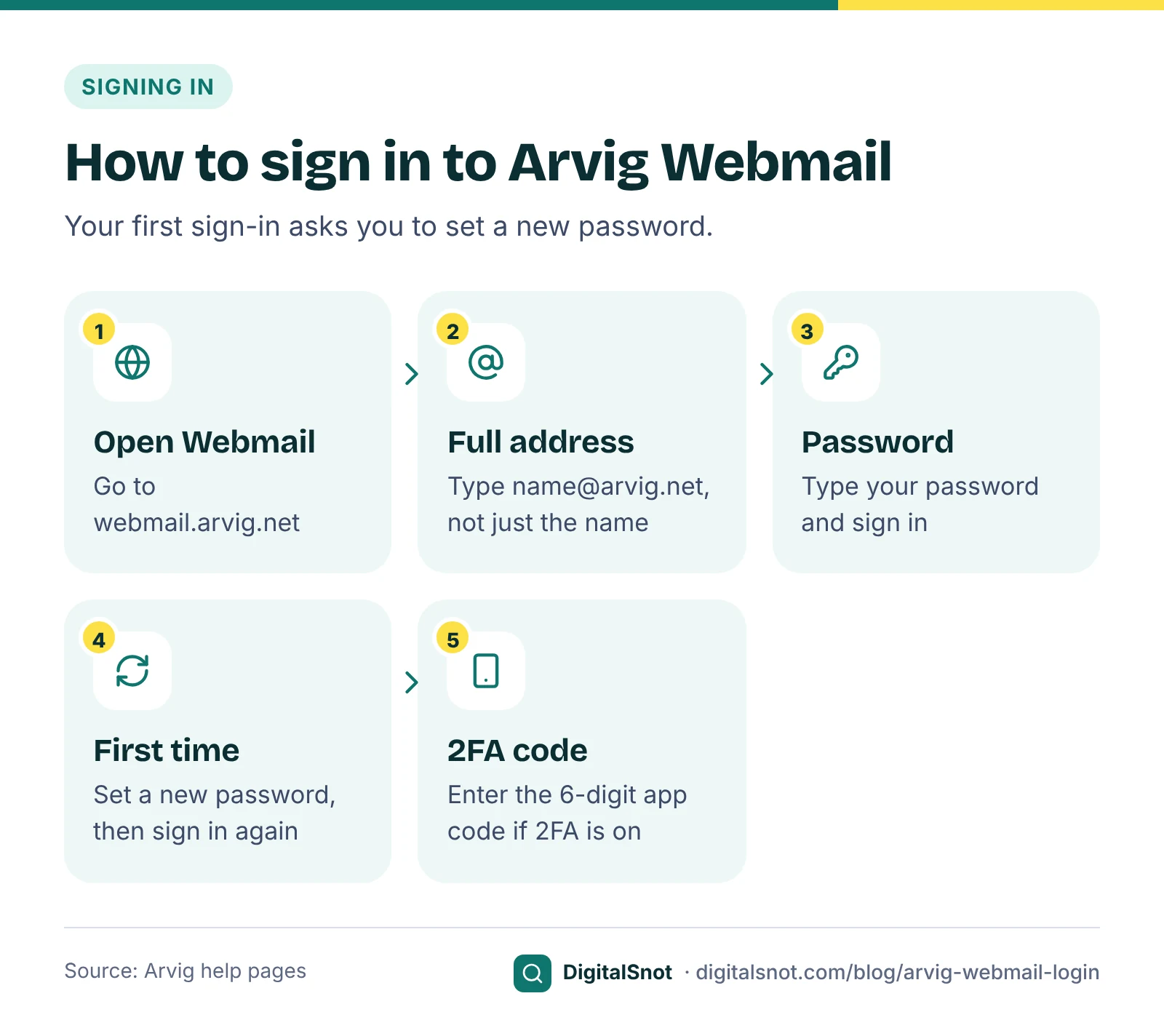
Arvig's guide to logging in to your Webmail gives two ways in: go straight to webmail.arvig.net, or open arvig.com/support and click the Webmail link. Then follow these steps:
- Type your full Arvig email address, for example name@arvig.net, not only the part before the @.
- Type your password and sign in.
- If this is your first sign-in, Arvig asks you to create a new password. The Webmail user guide suggests at least 12 to 16 characters, mixing upper and lower case letters, numbers and symbols.
- After you save the new password, Webmail signs you out. Sign in again with the new password.
- If you have turned on two-factor authentication, enter the 6-digit code from your authenticator app.
Some customers still have an older address, such as one ending in @eot.com or @tekstar.com. Arvig's email settings page says these sign in with the @arvig.net form of the address. So a made-up address such as smith@tekstar.com would sign in as smith@arvig.net.
Password reset, recovery details and two-factor authentication
If you forget your password, you can reset it yourself, but only if you prepared for it. The steps from Arvig's login guide are:
- On the Webmail sign-in screen, click "Forgot password?".
- Click REQUEST RESET.
- Open the mailbox you set as your recovery address. The reset email comes from helpdesk@arvig.com. Follow it to choose a new password.
This works only if you set up a recovery email address and security questions beforehand, in Settings > Accounts. Arvig's guide to setting up a recovery email address and security questions walks through it. If you never added them, the reset email has nowhere to go, so call the Help Desk on 877.290.0560 instead.
So set them up now, while you can still sign in: add a recovery address that is not your Arvig address, and answer the security questions.
Turn on two-factor authentication
Arvig's Webmail page says it highly recommends two-factor authentication (2FA). Its two-factor authentication guide explains the set-up. In Settings > Accounts, you link an authenticator app on your phone, which then gives you a 6-digit code to enter when you sign in. You can choose to trust a device for 7 or 30 days, so a computer you use daily does not ask for a code each time.
Arvig email settings for Outlook, Apple Mail and other apps
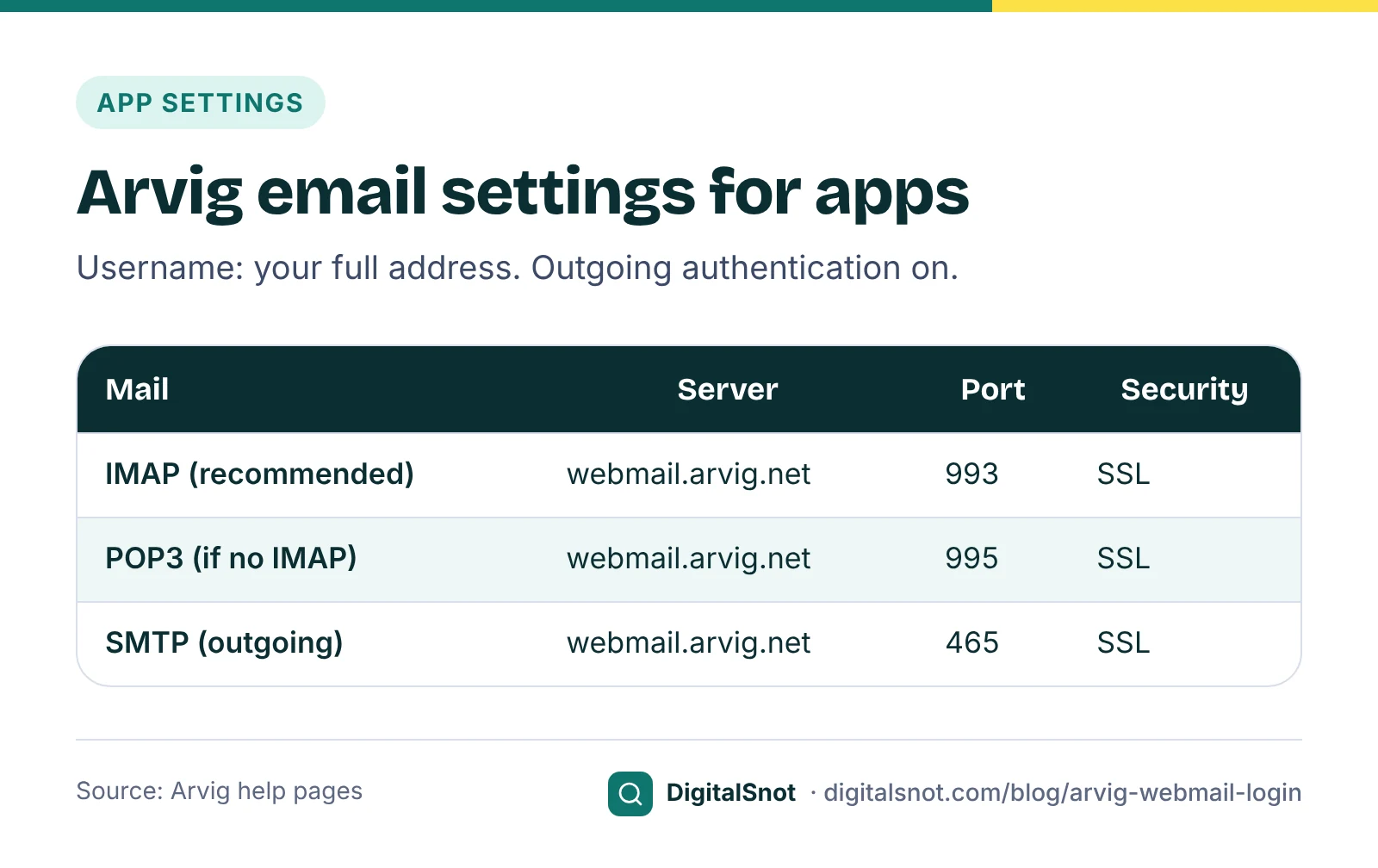
You can also read Arvig email in an app on your computer or phone. Arvig's email settings page recommends IMAP for incoming mail. Use POP3 only if it is the only option your app gives you.
| Server | Port | Security | |
|---|---|---|---|
| Incoming, IMAP (recommended) | webmail.arvig.net | 993 | SSL |
| Incoming, POP3 (only if IMAP is not offered) | webmail.arvig.net | 995 | SSL |
| Outgoing, SMTP | webmail.arvig.net | 465 | SSL |
For incoming and outgoing mail alike, the username is your full email address. Turn on authentication for outgoing mail, and give it the same username and password as incoming mail.
Arvig's page on supported browsers and email clients lists the latest versions of Outlook, Thunderbird, Apple Mail and eM Client. Older versions may fail to connect, because Webmail uses TLS 1.2. If an old app will not connect even with the right settings, update it before you try anything else.
For Outlook, Arvig has its own video, Set Up Your Arvig Email in Microsoft Outlook, which is worth watching before you start.
Storage and sending limits
These limits come from Arvig's internet FAQ, its policies and the Webmail user guide.
| Limit | What Arvig says |
|---|---|
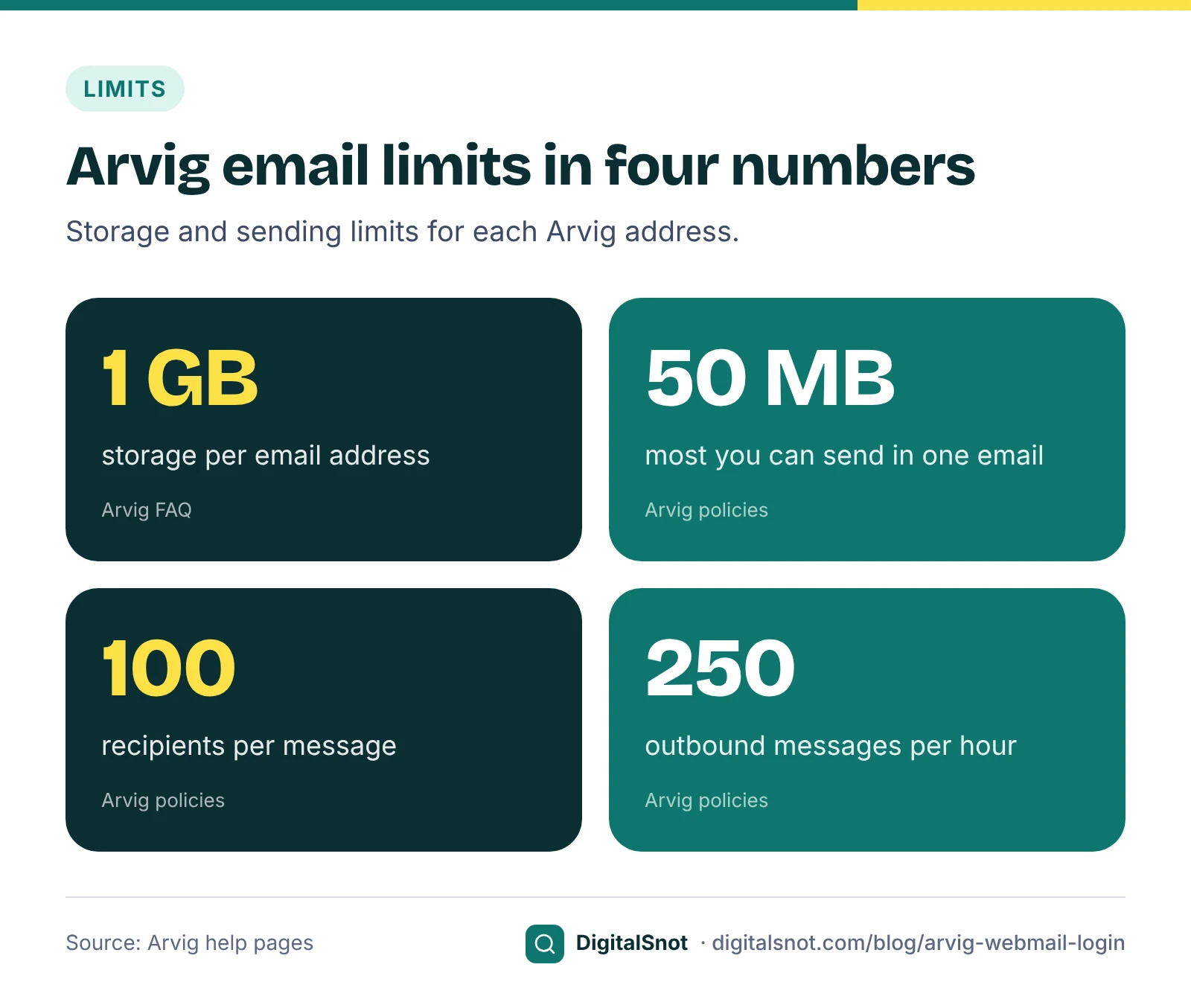
| Storage | 1 GB per email address |
| Extra storage | Available for a monthly fee, ordered from Customer Service on 888.992.7844 |
| Attachments | Maximum file attachment size of 25 MB |
| Size of a sent email | Up to 50 MB in total, attachments included |
| Recipients | 100 per message |
| Sending rate | 250 outbound messages per hour |
| Unused accounts | Accounts inactive for 180 days may be removed |
Arvig's FAQ also says it does not back up email and does not guarantee delivery. If a message or attachment matters, keep your own copy, for example by saving it to your computer. When an Arvig service account ends, its policies say Arvig may delete the email for that account and any secondary accounts. If you are away for part of the year, Arvig's Vacation Plan lets you keep your email address.
A worked example
Take a made-up bakery in Perham, Lakeside Loaf, which takes orders at an @arvig.net address. Before the holidays, the owner wants to send an 8 MB order form to 180 wholesale and regular customers. Here is how the limits apply:
- One message can go to at most 100 recipients, so she splits the list into two messages, one of 100 and one of 80.
- Even if every recipient counted towards the hourly limit, 180 stays under 250 an hour.
- The 8 MB file is well inside both the 25 MB attachment limit and the 50 MB total.
- She puts the addresses in Bcc, so customers do not see each other's addresses.
A list of several hundred would need more messages, spread over time to stay under 250 an hour.
Arvig Webmail not working? Check these in order
Work down this list. The first checks take seconds.
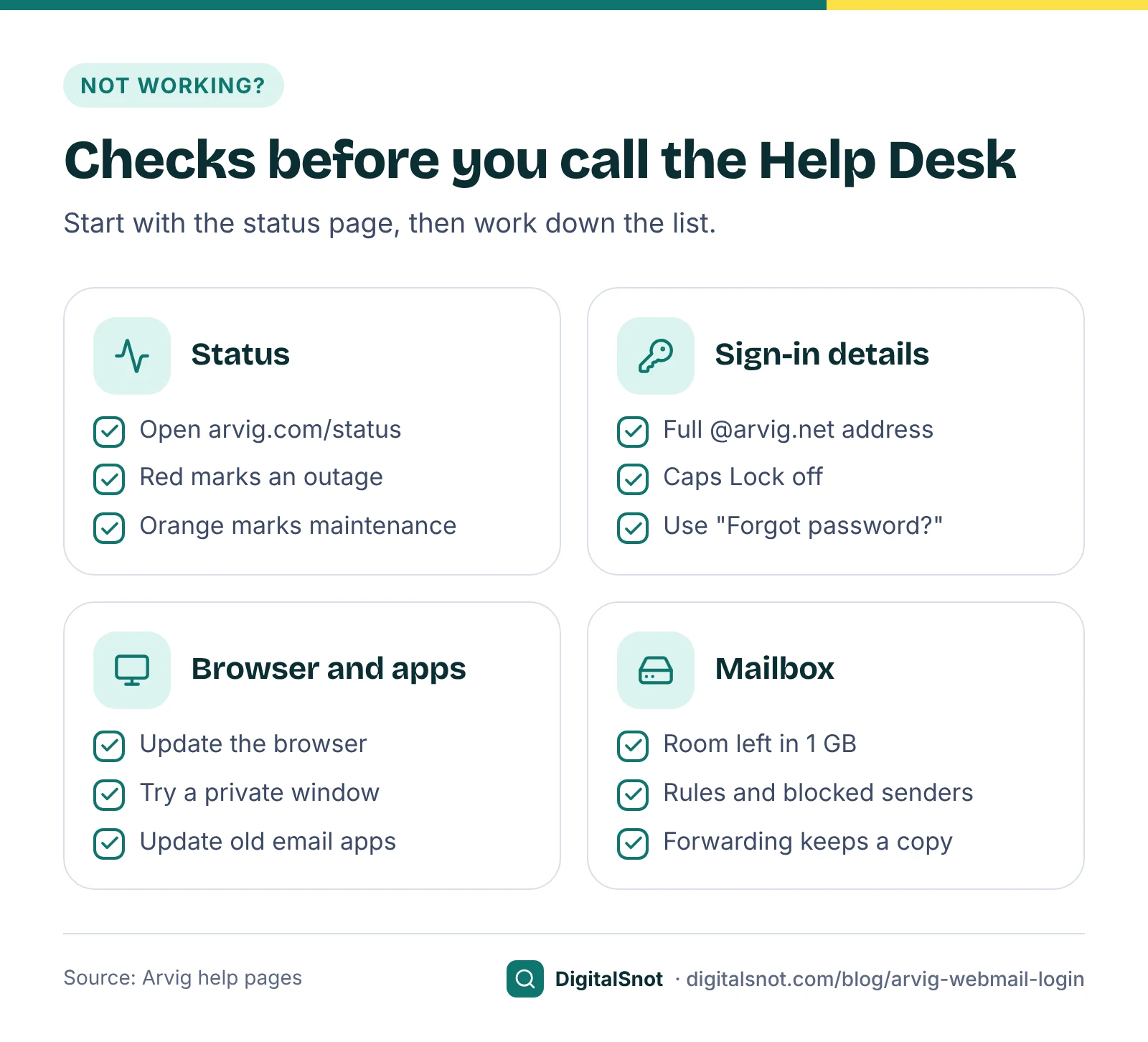
- Check Arvig's status page. Open arvig.com/status. Red markers show outages. Choose "Show Maintenance" to see planned work, marked in orange. The page updates every 15 minutes, and maintenance usually runs from midnight to 5 a.m. If there is an outage, wait for it to clear.
- Check your address and password. Use the full address, and the @arvig.net form if yours is an older @eot.com or @tekstar.com address. Check that Caps Lock is off. If the password still fails, use "Forgot password?" or call the Help Desk.
- Check your browser. Make sure it is up to date, and compare it with Arvig's supported browsers and clients page. Try a private window, which opens without your saved cookies. If Webmail works there, clear your browser's cache and cookies, or turn off add-ons one at a time.
- Check old email apps. Webmail uses TLS 1.2, and older versions of email apps may fail to connect. Update Outlook, Thunderbird, Apple Mail or eM Client, then compare your settings with the table above: port 993 for IMAP, port 465 for SMTP, SSL on both, and your full address as the username.
- Check your storage. Each address has 1 GB. If yours is close to full, save and then delete old messages with large attachments, or ask Customer Service about extra storage.
- Check where missing mail went. If you can sign in but expected mail is not there, look at your email rules, your blocked senders under Settings > Mail > Manage Spam, and whether automatic forwarding is on without keeping a copy. Arvig's Webmail help guides cover blocking senders and email rules.
- Call the Help Desk. If none of this works, call 877.290.0560.
How to contact Arvig support
Arvig lists these contacts on its support page. The Help Desk handles technical problems such as signing in and setting up an email app. Customer Service handles account requests such as extra storage.
| Who | Phone | Use it for | |
|---|---|---|---|
| Help Desk | 877.290.0560, toll-free, 24/7/365 | helpdesk@arvig.com | Technical help, such as Webmail sign-in, and a password reset when no recovery details were set up |
| Customer Service | 888.992.7844 | answers@arvig.com | Extra storage by phone; adding an email account by email or online chat |
| Arvig phone customers | Press 611 | None | Reaching Arvig from an Arvig phone line |
The 611 shortcut is listed on Arvig's online account page. Arvig's Webmail page also notes that help with browser access and third-party email clients may be subject to additional charges.
One more time, because it matters: DigitalSnot is an independent marketing agency, not part of Arvig. We cannot see, open or reset Arvig accounts, and we never ask for your email password. Give account details only to Arvig, through the contacts above.
Next steps: add a signature, and check your own domain
Once you can sign in, two small jobs are worth doing.
Add a signature. Put your name, business and phone number into our Email Signature Generator, choose a layout and press "Copy signature". Then, in Webmail, open Settings > Mail > Identities & Signatures and paste it in. The tool copies the signature with its formatting, but each email app shows signatures in its own way, so send yourself a test email and check how it looks after pasting. For Lakeside Loaf, that means a short signature with the bakery's name, phone number and opening hours.
Check your domain if you move to one. Some businesses move from an @arvig.net address to one on their own domain. If you do, put the domain into our Email Deliverability Checker. It reads the domain's public DNS records, including SPF, DKIM and DMARC, checks them against the sender rules Gmail, Yahoo and Outlook.com set, and gives you records to copy for anything that needs fixing. It reads DNS only: it does not sign in to any mailbox or send any mail. While you switch, Webmail's automatic forwarding can pass new mail to the new address and keep a copy.
If you use another regional provider's email, see our PTD webmail login guide and our Midco webmail login guide. For anything to do with your Arvig account itself, the Help Desk on 877.290.0560 is the place to start.
Free tools in this article
By the numbers
Frequently asked questions
What is the Arvig Webmail login address?
Go to webmail.arvig.net, or open arvig.com/support and click the Webmail link. Sign in with your full Arvig email address, such as name@arvig.net, and your password.
How do I reset my Arvig email password?
On the Webmail sign-in screen, click "Forgot password?" and then REQUEST RESET; a reset email from helpdesk@arvig.com goes to your recovery address. This only works if you set up a recovery email address and security questions in Settings > Accounts beforehand. Otherwise, call the Help Desk on 877.290.0560.
What are the Arvig email server settings?
Incoming mail: webmail.arvig.net with IMAP on port 993 and SSL, which Arvig recommends, or POP3 on port 995 and SSL if IMAP is not offered. Outgoing mail: webmail.arvig.net, port 465 with SSL and authentication on. The username is your full email address.
How much storage does an Arvig email address have?
Each address has 1 GB of storage. Extra storage is available for a monthly fee from Customer Service on 888.992.7844.
How do I know if Arvig Webmail is down?
Check arvig.com/status, where red markers show outages and "Show Maintenance" shows planned work in orange. The page updates every 15 minutes, and maintenance usually runs from midnight to 5 a.m.
I have an old @eot.com or @tekstar.com address. How do I sign in?
Arvig says customers with older addresses sign in with the @arvig.net form of the address. If that does not work, call the Help Desk on 877.290.0560.
Sources
Every figure and claim in this article comes from the sources below. We checked each one when writing and link to the original so you can read it yourself. Credit belongs to the authors and publishers listed. How we write and check our articles.
-
1
Log in to your Webmail
Arvig · The sign-in address, the new password on first sign-in, and the "Forgot password?" and REQUEST RESET steps with the email from [email protected].
-
2
Webmail
Arvig · Webmail access, Arvig's recommendation of two-factor authentication, and possible charges for help with browser access and third-party clients.
-
3
Email settings setup
Arvig · IMAP 993, POP3 995 and SMTP 465 with SSL on webmail.arvig.net, the full address as username, and the @arvig.net form for older addresses.
-
4
Set up recovery email address and security questions
Arvig · Recovery details are set in Settings > Accounts and are needed for a self-service password reset.
-
5
Webmail two-factor authentication guide (PDF)
Arvig · Authenticator app with a 6-digit code, set in Settings > Accounts, and trusting a device for 7 or 30 days.
-
6
Webmail user guide (PDF)
Arvig · Password guidance of 12 to 16 characters, calendars, signatures under Identities & Signatures, the 50 MB sending size and paid extra storage.
-
7
Internet FAQ
Arvig · 1 GB storage, 25 MB maximum file attachment, anti-spam and malware protection, no email backup, and how to add an email account.
-
8
Policies
Arvig · 100 recipients per message, 250 outbound messages per hour, 50 MB sending size, and removal of accounts inactive for 180 days.
-
9
Supported browsers and clients
Arvig · The latest Outlook, Thunderbird, Apple Mail and eM Client are supported; older versions may fail.
-
10
Stronger security is coming to Arvig's Webmail
Arvig blog · Webmail runs on the Atmail platform and uses TLS 1.2.
-
11
Network status
Arvig · Red outage and orange maintenance markers, updates every 15 minutes, maintenance usually from midnight to 5 a.m.
-
12
Support
Arvig · Help Desk 877.290.0560, toll-free and 24/7/365, [email protected]; Customer Service 888.992.7844, [email protected].
-
13
Set up email forwarding
Arvig · Automatic forwarding in Settings > Mail, with the option to keep a copy.
-
14
Whitelist and blacklist email addresses and domains
Arvig · Allowed and blocked senders under Settings > Mail > Manage Spam > Edit.
-
15
Customer Vacation Plan
Arvig · Customers on the Vacation Plan keep their email address.
-
16
Arvig 75th anniversary
Arvig · Royale and Eleanor Arvig bought the Perham Telephone Company in 1950.