Google Ads conversion tracking not working? A checklist
A step-by-step checklist for Google Ads conversions that show zero, too many or fewer than your real leads: statuses, the tag, the event, consent, goals and conversion lag.

On this page (10 sections)
- 1Step 1: read the status of each conversion action
- 2Step 2: is the Google tag on every page?
- 3Step 3: does the conversion fire once, in the right place?
- 4Step 4: check what consent does to your numbers
- 5Step 5: check which actions count, and how
- 6Step 6: maybe nothing is broken
- 7A worked example: a car detailing studio in Bengaluru
- 8Mistakes to avoid
- 9Your next step
- 10Sources
With Google Ads conversion tracking not working, the problem rarely announces itself. You see zero conversions for a week, or a sudden jump to hundreds, or a steady number that never matches the enquiries in your phone. Smart Bidding then learns from the wrong numbers, and your reports stop meaning anything.
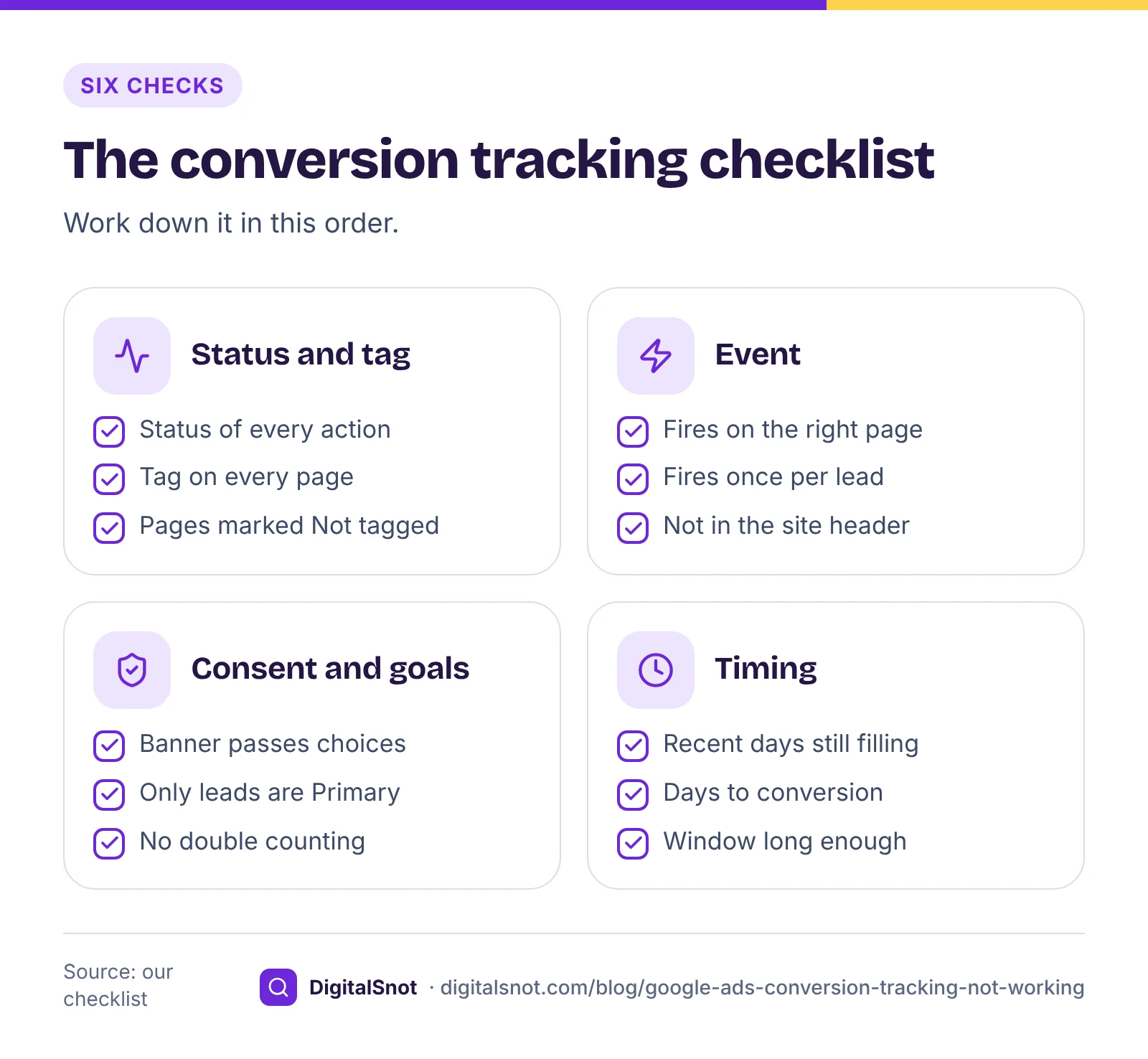
This checklist works through the causes in the order that finds most problems fastest: the status Google shows you, the tag, the conversion event, consent, your goal settings and, last, whether anything is broken at all.
Step 1: read the status of each conversion action
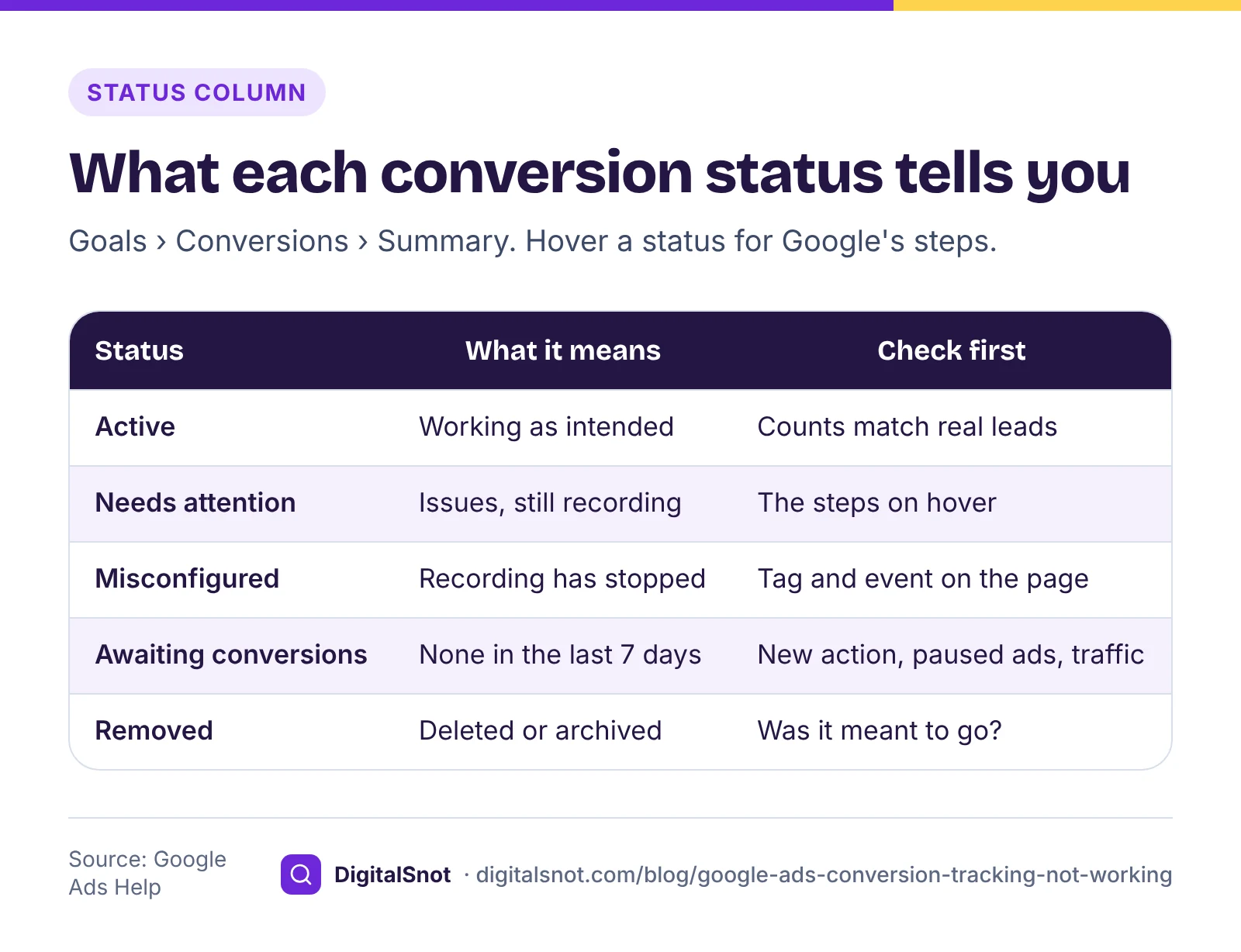
In Google Ads, open Goals, then Conversions, then Summary, and look at the Status column. Google's conversion tracking status troubleshooter lists five statuses:
- Active: tracking is working as intended.
- Needs attention: there are things to fix, but recording has not stopped.
- Misconfigured: conversions have stopped recording because of a setup error or a broken tag.
- Awaiting conversions: nothing has been recorded in the last 7 days. Google says this typically means the action was created less than 48 hours ago, your campaigns are paused, or traffic is too low.
- Removed: the action was deleted or archived.
Hover over a status to see Google's steps for that action. Older help pages, including Google's page on the tracking status of a Google Ads conversion action, use earlier names: Unverified (the tag has not been seen yet), No recent conversions (the tag was seen, but no conversions in 7 days) and Tag inactive (the tag is no longer seen). If a guide or a colleague uses those names, this is what they mean.
Step 2: is the Google tag on every page?
Every conversion depends on the Google tag. Google's page on troubleshooting sitewide tagging says it should be on every page of your site, right after the opening head tag. That includes the pages people land on from your ads and the pages where they convert.
Google Ads shows you which pages are missing it. The Tag coverage summary, opened from Data manager by choosing your Google tag and Manage, lists your pages as Tagged (the tag loaded in the last 30 days), No recent activity (it loaded before, but not in the last 30 days) or Not tagged. It can take up to 24 hours to update, and pages with very little traffic or redirects can be listed wrongly, so check those by hand.
To check a page yourself, enter it in our Google Ads Tag and Consent Checker. It reads the page's HTML and its public Tag Manager container, and reports your Google Ads ID, whether the Google tag or Tag Manager is there, any conversion events, enhanced conversions signals and your Consent Mode set-up, with what to fix first. It cannot see tags that a consent banner adds after a visitor accepts, so confirm anything doubtful in Tag Assistant.
Step 3: does the conversion fire once, in the right place?
The Google tag loads everywhere; the conversion event should fire only when a conversion happens. Google's page on using the Google tag for conversion tracking says the event snippet goes after the Google tag. There are two versions:
- Page load: placed on the page people reach after converting, such as a thank-you or order confirmation page. Every visit to that page counts.
- Click: fires when someone taps a button or link, as Google's page on tracking clicks as conversions explains.
The common faults follow from that. A page-load snippet pasted into a site-wide header, often by a theme setting or a plugin, counts every page view as a conversion. A form that shows "Thank you" on the same page, without loading a new page, never triggers a page-load snippet at all; it needs a click or form-submission trigger instead. And a thank-you page that people can reach without filling in the form, from a menu or a bookmark, counts visits that are not leads.
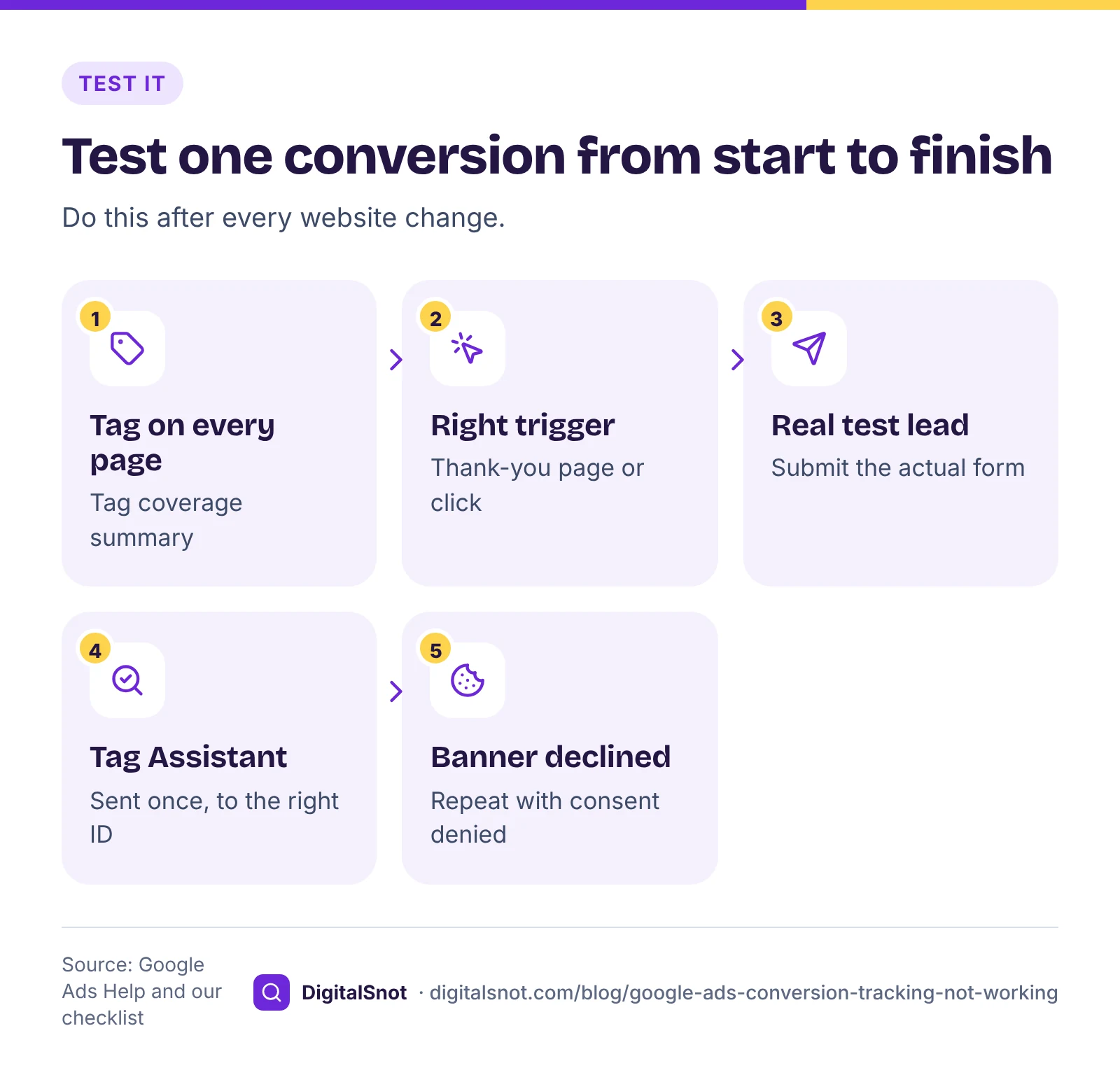
Then test it. Google's page on using Tag Assistant to troubleshoot conversion actions explains how to start Tag Assistant from the Conversions summary for a single action. Submit a real test enquiry and watch whether the conversion is sent, and sent only once.
Step 4: check what consent does to your numbers
If your site has a cookie banner, consent mode decides what Google tags may do before and after a visitor chooses. Google's page about consent mode describes two set-ups. In basic consent mode, tags do not load until the visitor accepts. In advanced consent mode, tags load with consent denied by default and send cookieless pings, which Google uses for conversion modelling. Either way, some conversions from people who decline cannot be observed directly.
So a banner added last month can lower your reported conversions without anything being broken. Check that the banner passes the visitor's choice to the tags, and note the date the banner went live. Our post on tracking calls and WhatsApp leads explains consent mode in plain words.
Step 5: check which actions count, and how
When Google Ads shows more conversions than you have real leads, the tag usually works fine. Something is counted that should not be:
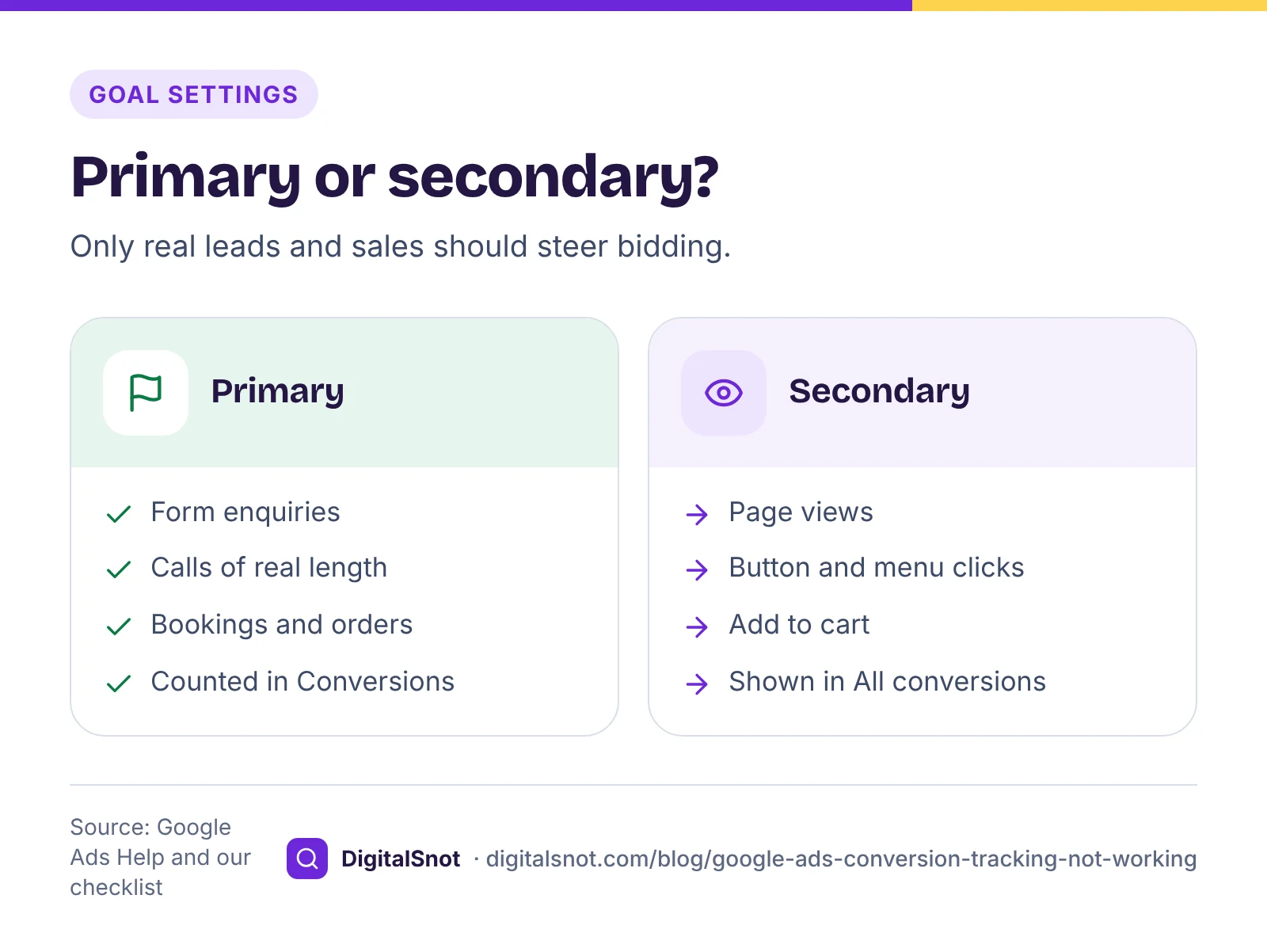
- A page view or button click set as Primary. Primary actions are counted in the Conversions column and used for bidding, as Google's page on primary and secondary conversion actions explains. Keep steps such as page views as Secondary.
- The same lead tracked twice: once by the Google Ads tag and again imported from Google Analytics, both as Primary.
- Two actions firing on one thank-you page.
- A lead form counted "Every", so one person who submits twice becomes two leads.
Copy the table of conversion actions from the Summary page into the Conversion Goals Auditor. It checks which actions are Primary, the same sale tracked by your tag and by Google Analytics, page views or clicks set as Primary, leads counted "Every", sales without values, short windows, attribution models Google has retired and actions that have stopped recording. On attribution, Google's page about attribution models says data-driven is the default for most actions, last click is still available, and the first click, linear, time decay and position-based models are no longer supported.
Step 6: maybe nothing is broken
Google's page on understanding conversion tracking data explains that the Conversions column reports each conversion on the date of the ad click, not the date it happened. Someone who clicks on Monday and books on Friday adds a conversion to Monday. So the last few days always look low at first and fill in later. The "Conversions (by conv. time)" column shows the same conversions by the date they happened.
How long this takes depends on your customers. Google's page on finding how long customers take to convert shows how to segment a report by Days to conversion, which splits conversions into up to 19 rows, using a date range that ends at least 30 days ago. Conversions after your conversion window are never counted: the default is 30 days, and Search allows 1 to 90.
Paste that report into the Conversion Lag Calculator. It shows the days by which half, 80% and 90% of your conversions arrive, how complete yesterday's and last week's figures are likely to be, and how long to wait before judging a change. These are our measures from your own data, not Google's forecast.
A worked example: a car detailing studio in Bengaluru
Shine Car Spa in Whitefield, Bengaluru, is a made-up business taking bookings through a website form. In June, Google Ads recorded 18 bookings, close to the 21 in the owner's diary. After a website redesign in July it recorded 340, while the diary showed 22.
The Tag Checker found a conversion event that fired on page load, on the home page. The new theme had put the event snippet in the site-wide header. The Goals Auditor also showed a Google Analytics "form submit" event imported as a second Primary action. The developer moved the snippet to the booking confirmation page, and the owner set the imported event to Secondary.
In August, conversions fell to zero and the status changed to Awaiting conversions. The new form showed its thank-you message on the same page, so the confirmation page never loaded. A form-submission trigger in Tag Manager fixed it, and a test booking in Tag Assistant sent one conversion. Because Smart Bidding had learned from the wrong numbers for weeks, the owner also looked at data exclusions, which tell Smart Bidding to ignore days with broken conversion data.
Mistakes to avoid
- Judging yesterday's conversions. They are still arriving.
- Testing only in your own browser after accepting cookies. Test with the banner declined too.
- Changing the website without checking tracking. Redesigns, new themes and form plugins break tracking more than anything else.
- Making every action Primary. Smart Bidding then aims for page views and clicks, not customers.
- Fixing tracking and changing bids on the same day. You will not know which change did what.
Your next step
Open your Conversions summary today and note each action's status. Then run your thank-you page through the Google Ads Tag and Consent Checker and paste your actions table into the Conversion Goals Auditor. Once tracking is right, it is worth reading your Quality Score and budget again with numbers you can trust. More tools are on our Google Ads tools page, and you can ask us to check your set-up.
Free tools in this article
- Google Ads Tag and Consent Checker Check the Google tag, Tag Manager, conversion events and Consent Mode v2 on any page.
- Conversion Goals Auditor Check your conversion actions for duplicates, wrong primary actions and settings that confuse Smart Bidding.
- Conversion Lag Calculator See how many days your Google Ads conversions take, so you do not judge a campaign or a change too early.
By the numbers
- with no conversions recorded before an action shows Awaiting conversions
- 7 days
- Source: Google Ads Help
- the default click-through conversion window; it can be set from 1 to 90 days for Search
- 30 days
- Source: Google Ads Help
Frequently asked questions
What does Misconfigured mean in Google Ads conversions?
Google says Misconfigured means conversions have stopped recording because of a setup error or a broken tag. Hover over the status on the Conversions summary page to see the steps for that action, then test it with Tag Assistant.
What does Awaiting conversions mean?
Nothing has been recorded for that action in the last 7 days. Google says this typically means the action was created less than 48 hours ago, your campaigns are paused or your traffic is too low. If ads are running and leads are coming in, check the tag and the event.
Why does Google Ads show more conversions than my real leads?
Usually something is counted twice or counts too much: a page-load snippet in the site-wide header, the same lead tracked by the Google Ads tag and imported from Google Analytics, a page view or button click set as Primary, or a lead form counted "Every".
Why are my recent conversions so low?
Google Ads reports each conversion on the date of the ad click, not the date it happened. People who clicked in the last few days have not finished deciding, so recent days fill in later. The Days to conversion segment shows how long your customers usually take.
Does a cookie banner reduce my Google Ads conversions?
It can. With consent mode, tags either wait for consent or run with consent denied and send cookieless pings that Google uses for modelling. Some conversions from people who decline cannot be observed directly, so reported numbers can fall after a banner goes live.
How do I test Google Ads conversion tracking?
Start Tag Assistant from the Conversions summary for the action, then submit a real test enquiry or order. Check that the conversion is sent once, on the right page or click, with the cookie banner both accepted and declined.
Sources
Every figure and claim in this article comes from the sources below. We checked each one when writing and link to the original so you can read it yourself. Credit belongs to the authors and publishers listed. How we write and check our articles.
-
1
Conversion tracking: troubleshooting conversion tracking status
Google Ads Help · The statuses Active, Needs attention, Misconfigured, Awaiting conversions and Removed, and what each means.
-
2
Check the tracking status of your Google Ads conversion action
Search Ads 360 Help · The earlier status names Unverified, No recent conversions, Recording conversions and Tag inactive.
-
3
Troubleshoot your sitewide tagging
Google Ads Help · The Google tag on every page, after the opening head tag.
-
4
About the Tag coverage summary
Google Ads Help · Tagged, Not tagged and No recent activity, up to 24 hours to update, and pages listed wrongly.
-
5
Use the Google tag for Google Ads conversion tracking
Google Ads Help · The event snippet goes after the Google tag.
-
6
Track clicks on your website as conversions
Google Ads Help · The click version of the event snippet for buttons and links.
-
7
Use Tag Assistant to troubleshoot your unverified or inactive conversion actions
Google Ads Help · Starting Tag Assistant from the Conversions summary to test an action.
-
8
About consent mode
Google Ads Help · Basic and advanced consent mode, and cookieless pings when consent is denied.
-
9
About consent mode modeling
Google Ads Help · Conversion modelling for visitors who decline consent.
-
10
About primary and secondary conversion actions
Google Ads Help · Primary actions are counted in Conversions and used for bidding; secondary actions are for observation.
-
11
About attribution models
Google Ads Help · Data-driven as the default, last click available, older models no longer supported.
-
12
Understand your conversion tracking data
Google Ads Help · Conversions reported on the date of the click, and the by conversion time column.
-
13
Find out how long it takes for your customers to convert
Google Ads Help · The Days to conversion segment, up to 19 rows, and a date range ending at least 30 days ago.
-
14
About conversion windows
Google Ads Help · A 30-day default click-through window, from 1 to 90 days.
-
15
About data exclusions
Google Ads Help · Telling Smart Bidding to ignore days with broken conversion data.